If you are managing both Active Directory and Entra ID tenant, you already know you may/must synchronize your Active Directory to Entra ID using one of the synchronization tools: Entra ID Connect or Entra ID Cloud Sync.
Earlier last month, I have reminded you to start looking at migrating from Entra ID Connect to Entra ID Cloud Sync as Microsoft has starting the process of decommissioning Entra ID Connect services.
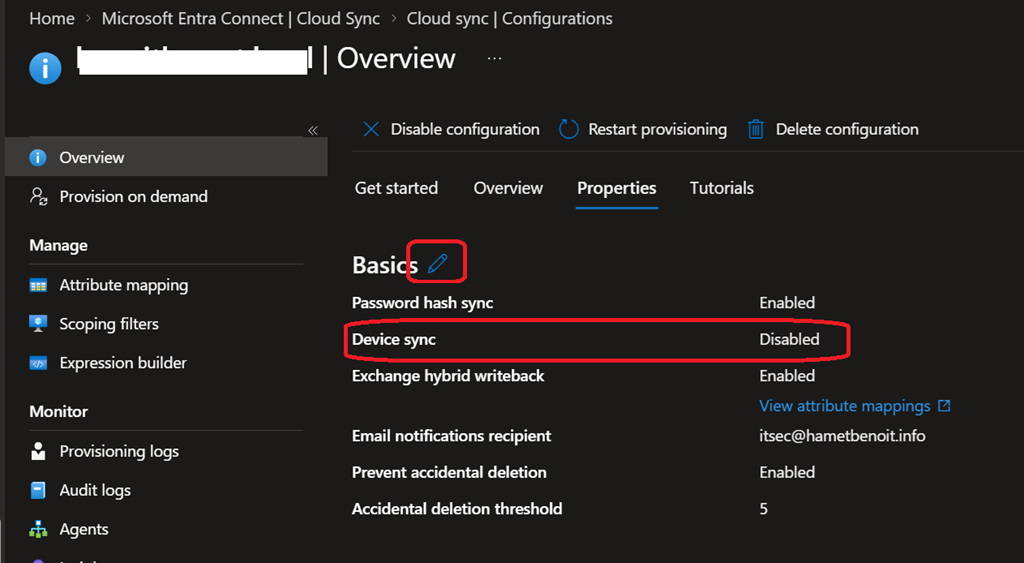
Well, until then there was still a potential blocker as Entra Cloud Sync was not able to synchronize Active Directory devices to Entra ID, this was only possible with Entra ID Connect.
While I’m recommending most (not to say all) client devices should be Entra ID Joined and Hybrid Entra ID Joined, there may still be need for AD devices to be synchronized to Entra.
Good news for those already starting preparing the migration to use Entra ID Cloud Sync as it is now possible to synchronize devices from Active Directory to Entra.
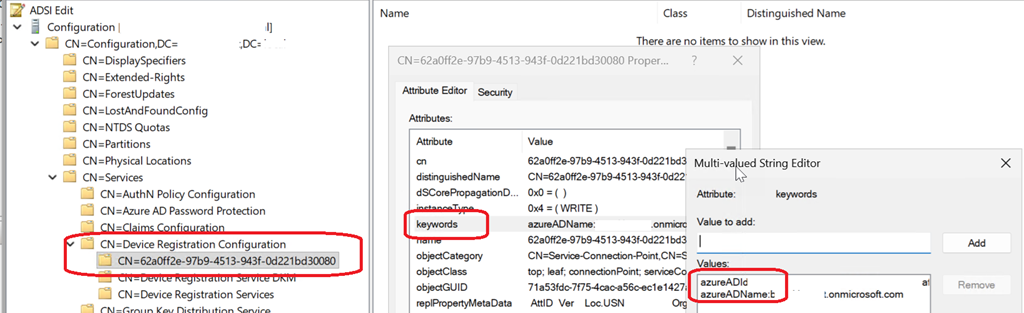
The first thing you need to do is creating an SCP (Service Connection Point), similar to the requirement for Entra ID Connect. If an SCP already exists, the SCP will be updated with updated Entra ID Cloud Sync requirements.
If not existing, this SCP will be created.
Then you can enable to devices sync from Active Directory to Entra ID.
Update / Create SCP
To create or update the SCP, you need to run the below PowerShell script using an Enterprise Admins account from a domain joined device or domain controller
Reminder if you are already syncing devices using Entra ID Connect, you should not need to run this script as the SCP (CN=62a0ff2e-97b9-4513-943f-0d221bd30080,CN=Device Registration Configuration,CN=Services,CN=Configuration,DC=<AD domain>,DC=<AD extension>) should already exist with the proper keyword key values would be already set
#
# ConfigureSCP.ps1
# Configures the service connection point (SCP) for Microsoft Entra hybrid join in the current forest.
#
# REQUIREMENT: Must be run by an Enterprise Admin of the current forest.
#
# EXAMPLES:
# .\ConfigureSCP.ps1 -Domain contoso.com -TenantId <guid>
# .\ConfigureSCP.ps1 -Domain contoso.onmicrosoft.com -TenantId <guid>
#
[CmdletBinding()]
param(
# Verified domain used for device authentication.
# If you use federation, enter a federated domain name.
# Otherwise, enter your primary *.onmicrosoft.com domain name.
[Parameter(Mandatory = $true)]
[ValidateNotNullOrEmpty()]
[string]$Domain,# Microsoft Entra tenant identifier (GUID).
[Parameter(Mandatory = $true)]
[guid]$TenantId
)$ErrorActionPreference = “Stop”
Write-Output “Configuring the SCP for Microsoft Entra hybrid join in your Active Directory forest.”
try {
## Set variables
$azureADName = “azureADName:” + $Domain.Trim()
$azureADId = “azureADId:” + $TenantId.ToString()
$keywords = “keywords”
$ldap = “LDAP://”$rootDSE = New-Object System.DirectoryServices.DirectoryEntry($ldap + “RootDSE”)
$configCN = $rootDSE.Properties[“configurationNamingContext”][0].ToString()
$servicesCN = “CN=Services,” + $configCN
$drcCN = “CN=Device Registration Configuration,” + $servicesCN
$scpCN = “CN=62a0ff2e-97b9-4513-943f-0d221bd30080,” + $drcCN## Get/Create: CN=Device Registration Configuration,CN=Services
if ([System.DirectoryServices.DirectoryEntry]::Exists($ldap + $drcCN)) {
$deDRC = New-Object System.DirectoryServices.DirectoryEntry($ldap + $drcCN)
}
else {
$de = New-Object System.DirectoryServices.DirectoryEntry($ldap + $servicesCN)
$deDRC = $de.Children.Add(“CN=Device Registration Configuration”, “container”)
$deDRC.CommitChanges()
}## Edit/Create: CN=62a0ff2e-97b9-4513-943f-0d221bd30080,CN=Device Registration Configuration,CN=Services
if ([System.DirectoryServices.DirectoryEntry]::Exists($ldap + $scpCN)) {
$deSCP = New-Object System.DirectoryServices.DirectoryEntry($ldap + $scpCN)
$deSCP.Properties[$keywords].Clear()
}
else {
$deSCP = $deDRC.Children.Add(“CN=62a0ff2e-97b9-4513-943f-0d221bd30080”, “serviceConnectionPoint”)
}$deSCP.Properties[$keywords].Add($azureADName) | Out-Null
$deSCP.Properties[$keywords].Add($azureADId) | Out-Null
$deSCP.CommitChanges()Write-Output “Configuration complete!”
}
catch {
Write-Output “Configuration could not be completed.”
Write-Output $_
exit 1
}
When running this script, you will need to run it with some parameters:
- -Domain: to set the custom/verified domain. If you are still using a federation services, you need to use your Federated Service domain, otherwise use the .onmicrosoft.com (recommended)
- -TenantID: which is your Entra ID tenant ID value
Similar to
.\ConfigureSCP.ps1 -Domain <verified-domain> -TenantId <tenant-id>
Once this script has been executed and completed with Configuration Completed you can go to the next step; if an error occurs, review the the error and fix it.
To enable to devices Entra ID Cloud Sync, using either a global administrator or Hybrid Identity Administrator (recommended) account, edit the Cloud Sync configuration (or create a new one) by accessing the Entra Connect\Cloud Sync blade from the Entra ID portal (direct link Cloud sync – Microsoft Entra admin center)
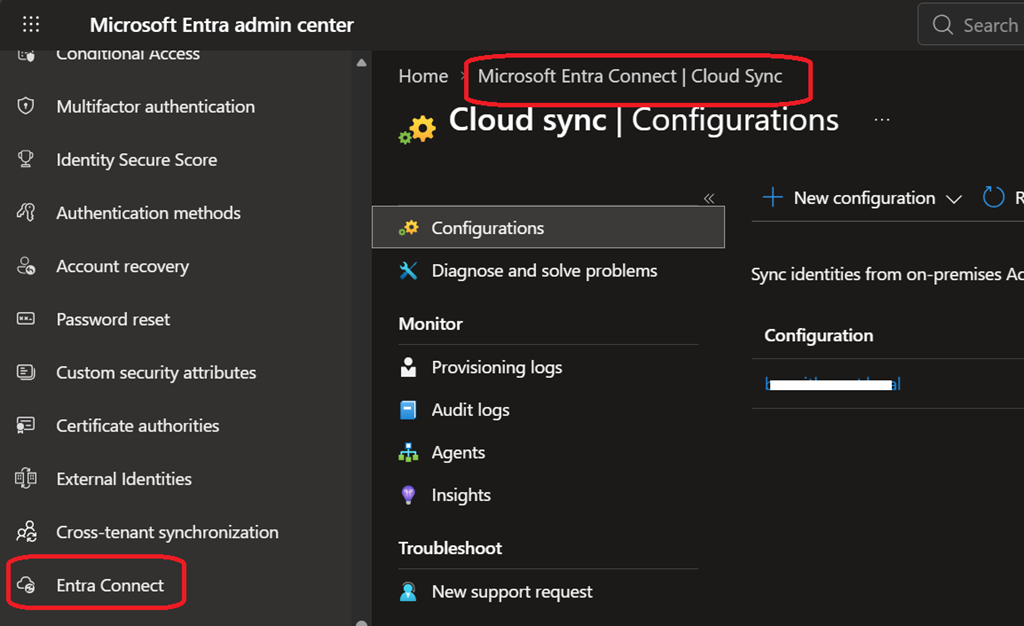
If you are editing an existing Cloud Sync configuration, select the Edit option from the Properties blade to enable the device sync.