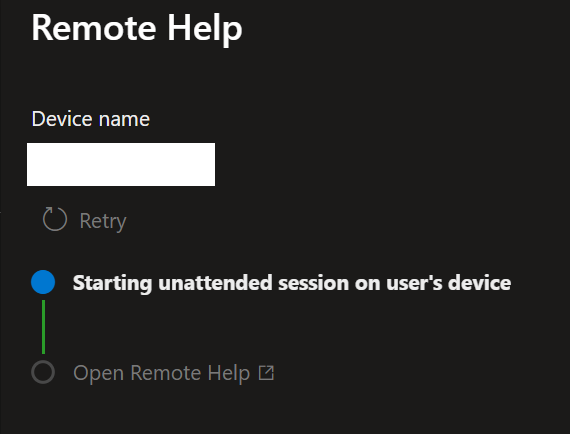
If you use Intune to manage your devices fleet, you may also be using the remote help feature allowing support desk team to remotely connect to devices to help end-users with their issue (Use Remote Help to Assist Users Authenticated by your Organization – Microsoft Intune | Microsoft Learn).
There has been one thing with remote help which was causing bit of trouble for support team as it required interaction with end-user to accept the remote connection.
This off course impact the capability for the support team to resolve issue out of hours as unattended connection was not possible.
Well, good news as with the August Intune update, remotely sign in on device with remote help without end-user to accept the connection is now being possible for Windows devices.
Before you start jumping around, first let’s review few things:
- Enabled features
- Remote Access Without User Presence: Helpers can sign in with their own credentials and establish a new Windows session on the target device, even when no user is actively connected
- Session Isolation: The user’s existing session remains locked and preserved, preventing disruption while support activities are performed in a separate session
- Security-First Design: Uses least-privilege access, a dedicated RBAC permission, and a complete audit trail to help maintain security and compliance requirements
- User Awareness: If a user is currently signed in, they receive a notification and can choose to accept or reject the remote access request
- Rich Session Features: Supports file transfer, clipboard passthrough, Remote Desktop Virtual Printer, multi-monitor support, and other productivity-enhancing capabilities
- Licensing Requirements
- Microsoft Intune Suite
- Remote Help standalone add-on
- Microsoft 365 E3/E5
- Role-Based Access Control (RBAC)
- Windows unattended control remote sign-in
- Devices
- Physical x64 Windows devices must be Entra or Hybrid Joined devices; BYOD devices do not allow unattended remote help session. Virtual Machines or ARM devices are not (yet) supported.
- Devices must match the compliance requirements, including the default compliance (Windows Default Compliance)
To setup the RBAC, connect to your Intune portal (Dashboard – Microsoft Intune admin center) to access the Tenant administration\Roles blade to create/edit role to enable Windows unattended control remote sign-in role
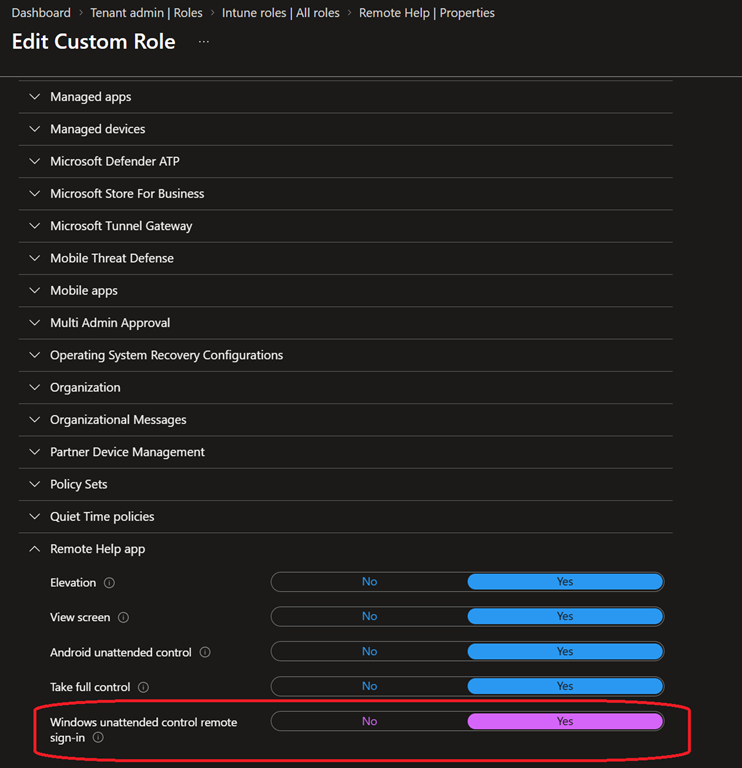
Then assign the updated role to the support team; it is recommended to target the unattended access to level 2+ support team members.
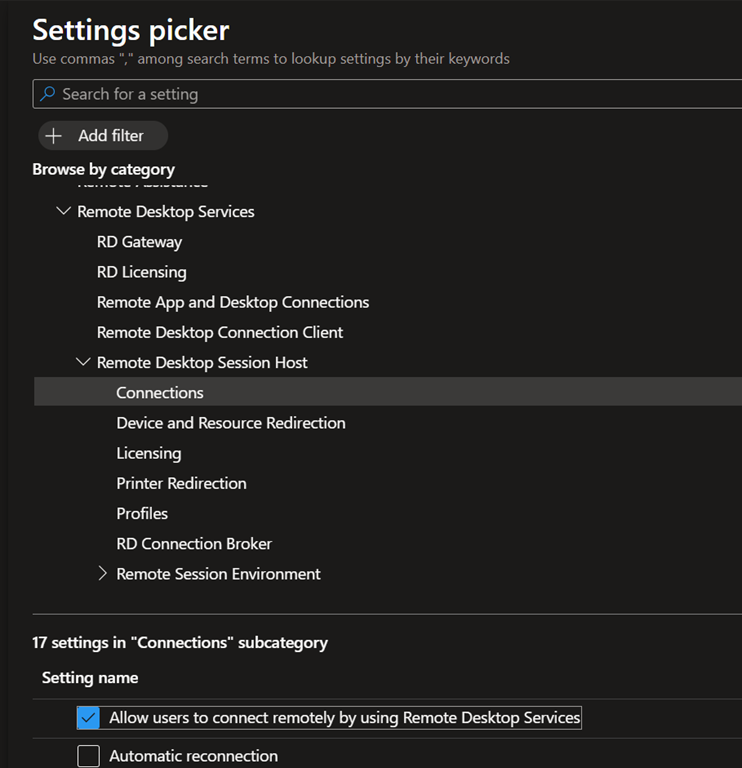
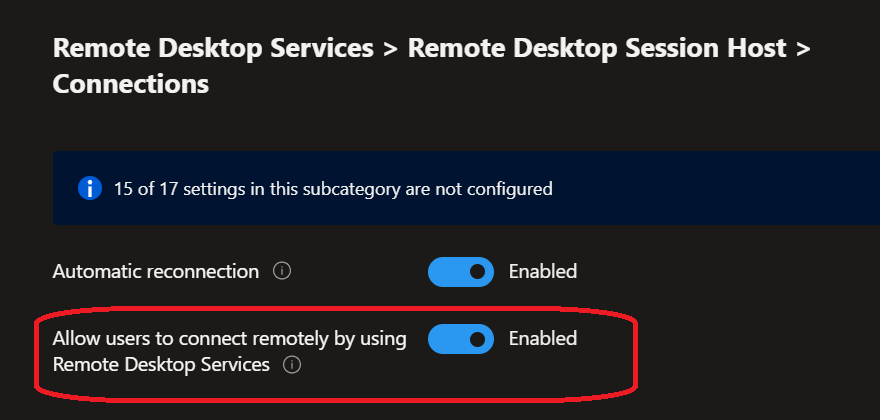
Next is to allow remote desktop access using a Settings catalog profile (create or edit existing one) to enable remote access using remote desktop
- Administrative Templates\Remote Desktop Session Host\Connections and enable Allow users to connect remotely by using Remote Desktop Services
Off course, ensure the Remote Help application is deployed to the devices (Deploy Remote Help with Microsoft Intune – Microsoft Intune | Microsoft Learn) and allow remote desktop access to devices using the firewall rules; you may need to adjust the firewall policies to allow remote desktop access from different networks (domain, private, public), otherwise remote help will not be able to connect to the device – even in interactive remote help session.
You also need to ensure remote desktop and remote help are allowed for inbound connection in Windows Firewall and support team are granted permissions
- Permissions: users must have Help Desk Operator
Remember if you use PIM to allow this role, a device restart may be required after the role has been activated
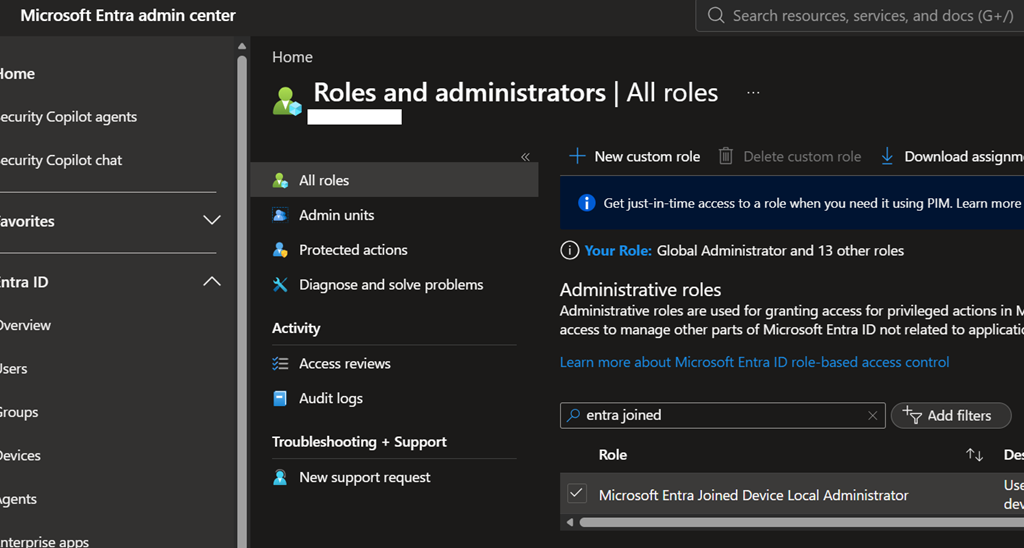
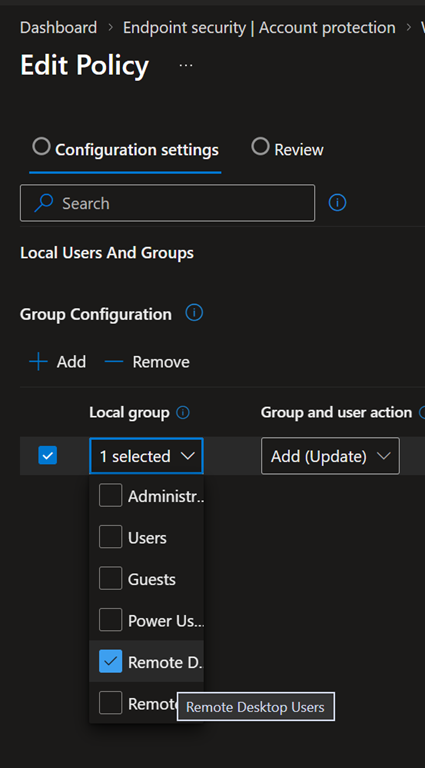
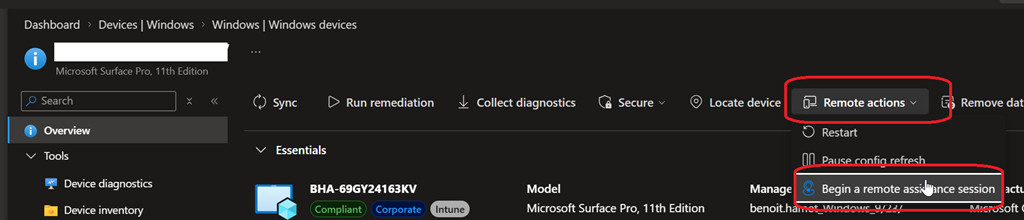
Then support team can use the Intune portal to remotely connect to the device using the Remote actions\Begin a remote assistance session to initiate an unattended control
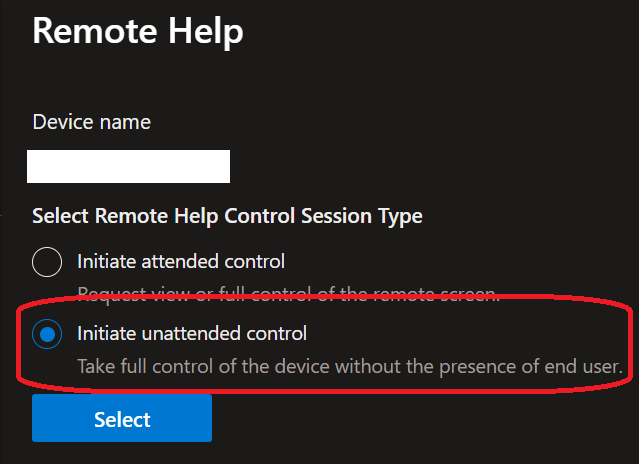
Then an unattended session is starting