

There has been a new Windows feature introduced few months ago called Windows Backup.
Windows Backup is feature to allow streamlining devices transition during replacement process by backing up user settings and Microsoft Store app configurations.
This feature has been turned off by default so far but with the incoming Windows 11 26H2 release later this year, the feature will then be turned on by default, unless off course disabled by policy (Intune or group policy).
Windows Backup is replacing the Entra ID Enterprise State Roaming (ESR) capability (Enable Enterprise State Roaming in Microsoft Entra ID – Microsoft Entra ID | Microsoft Learn).
NOTE this is already available for Windows Insider versions.
What’s going to happen, depending of your policies:
- Keep backup on (recommended): No action required. Eligible devices with the backup policy in a Not Configured state under Windows settings backup and restore* will enable backup automatically at general availability of Windows 11, version 26H2.
- Opt out: Explicitly disable the backup policy through Microsoft Intune, Group Policy, or your MDM solution. Explicit disablement always takes precedence over the default.
- Make intent explicit: Set the backup policy to enabled today. This is functionally equivalent to the new default but provides an unambiguous, audit-friendly admin signal, and the ability for user-targeted enablement only.
- Control restore behavior separately: Configure the restore policy on its own. The default-on change applies to backup only.
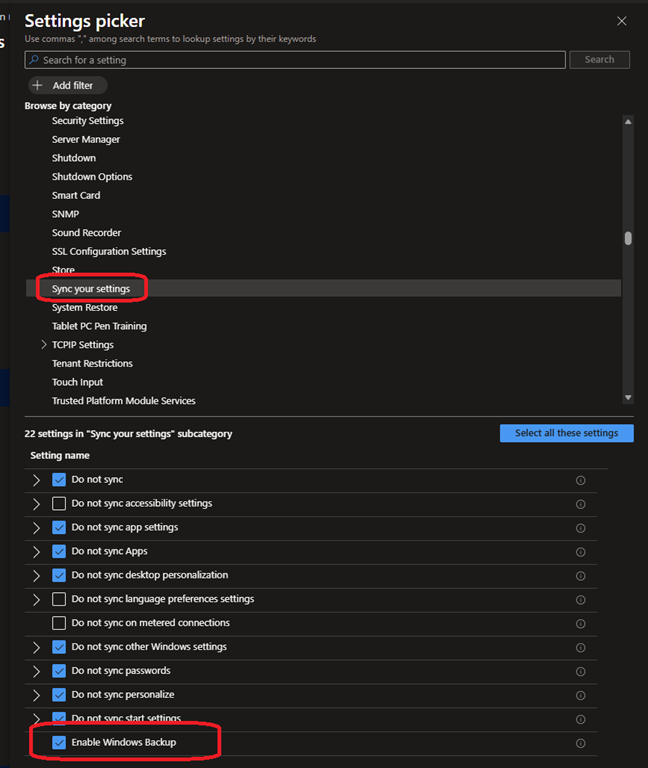
To configure policy to control Windows Backup you can use either Intune Settings catalog or group policy using the Administrative Templates\Windows Components\Sync your settings branch to enable/disable Enable Windows Backup setting
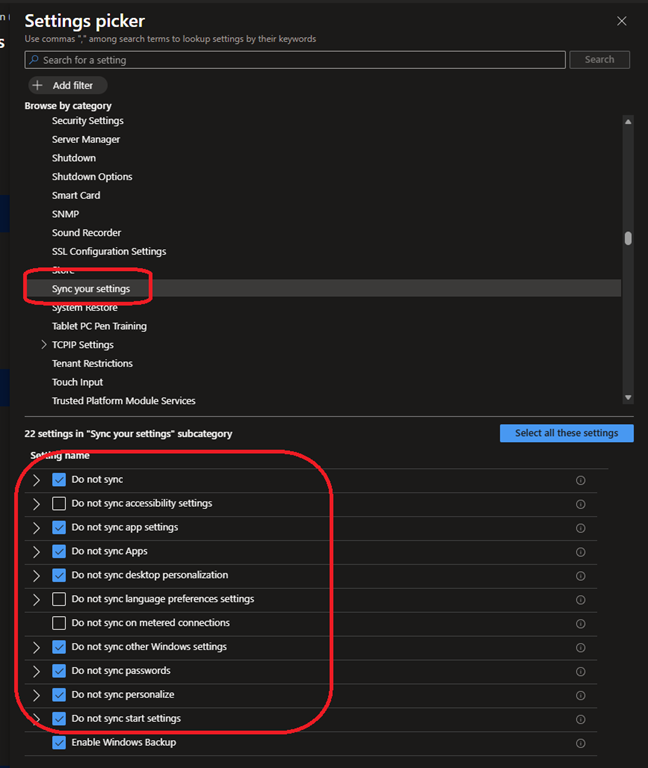
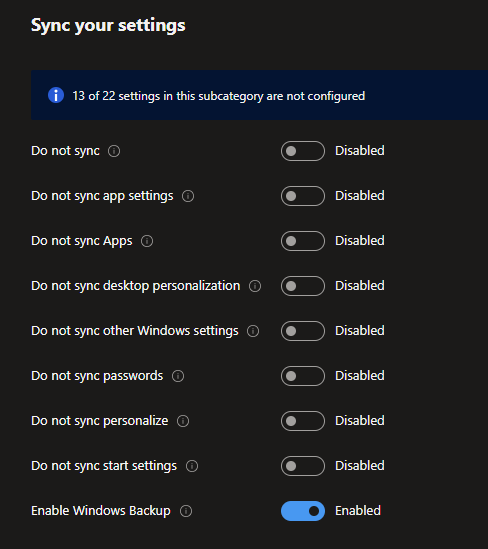
If you enable Windows Backup, you can then decide which sub components will be synced/backed up
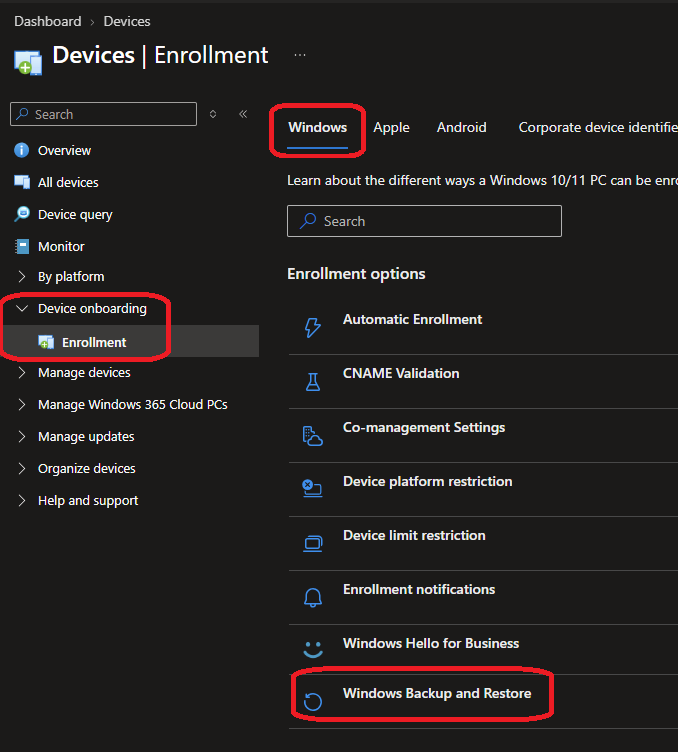
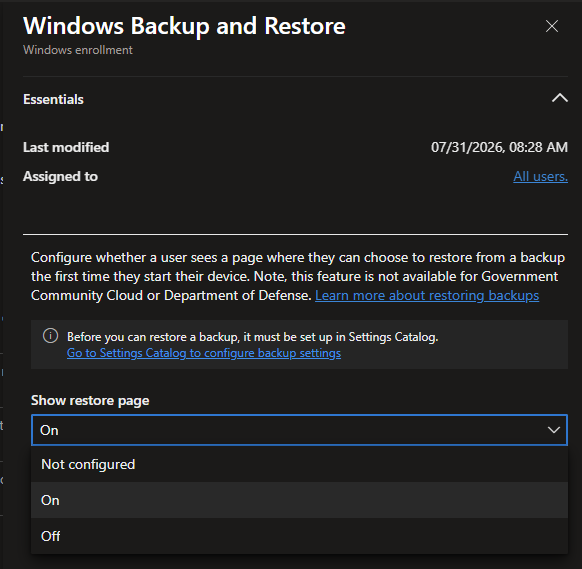
You can also apply a tenant level policy using the Enrolment process by accessing the enrolment page Devices – Microsoft Intune admin center and manage it from the Windows\Windows Backup and Restore option
To know more about this feature, read the complete documentation available here Windows Backup for Organizations Overview | Microsoft Learn