

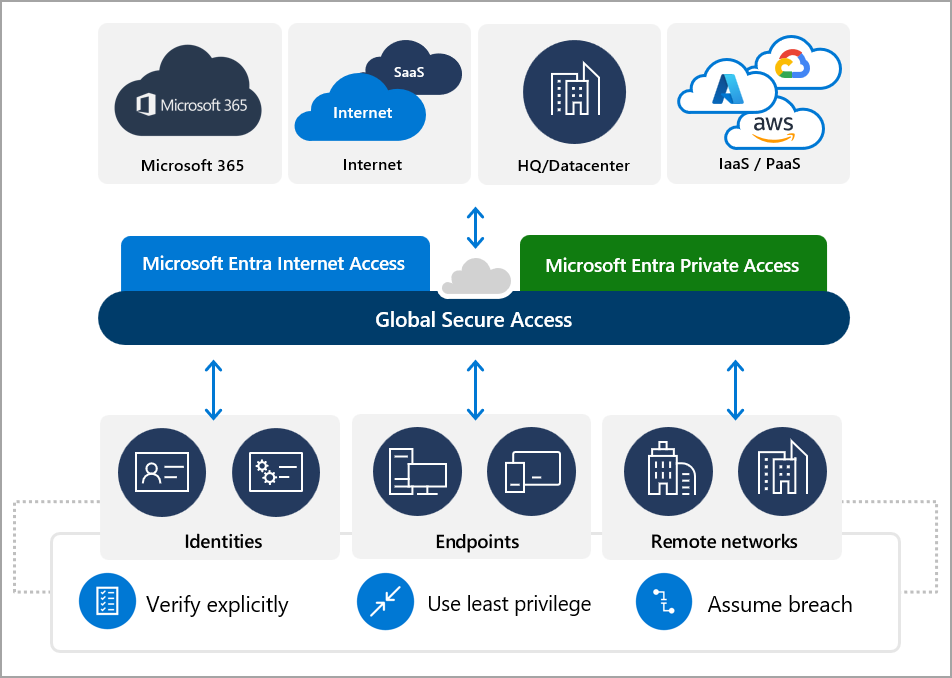
By now you probably already know about Entra Global Secure Access (GSA) to provide a secure access to corporate resources, either cloud (Office 365), internal applications (private access) or even manage internet access to filter authorized web sites.
Well, until now there was a down side as the device must have been joined to the Entra tenant to gain access to internal applications.
Well, good news as now you can also bring your own device using GSA to access internal applications.
To do so, the first thing is to register your own device to the Entra ID tenant you are planning to access internal applications using the ‘classic add a work or school account’ option; or during the first sign in to the
Off course the next step is to install the GSA client on your device – if your device is a corporate device from another tenant you may already have it deployed.
You then need to enable the ‘Sign out’ option (not enabled by default) by setting the below registry key
- Path: HKEY_LOCAL_MACHINE\SOFTWARE\Microsoft\Global Secure Access Client
- Registry name: HideSignOutButton
- Type: DWORD
- Value: 0 (enable) – or 1 (disable)
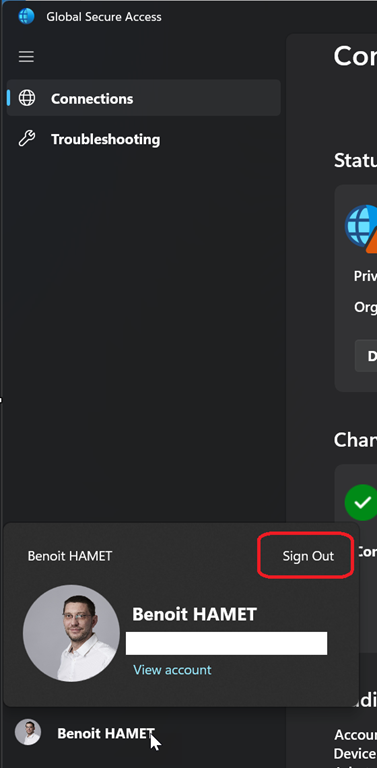
After signing out (if you were already connected to a tenant using GSA), you will be able to sign in with the target tenant account.
After signing in the target tenant you will have only one profile showing up (Private).
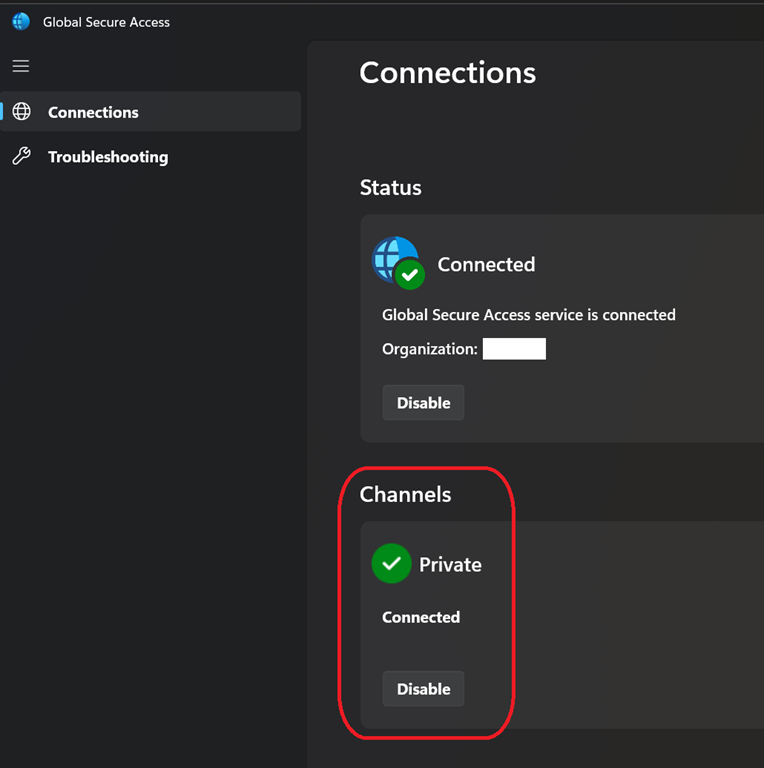
Finally the Entra ID administrators must have configured the private application has been registered through the Global Secure Access and assign to the account accessing it using BYOD GSA access.