

As you are likely aware, Entra ID allows end-users to change their own password when they forgot it using Self Service Password Reset (SSPR) from the My Sign Ins portal (My Sign-Ins | Security Info | Microsoft.com).
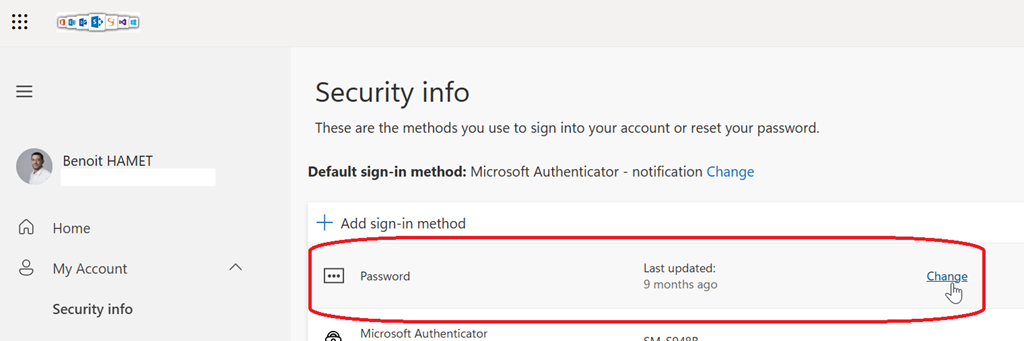
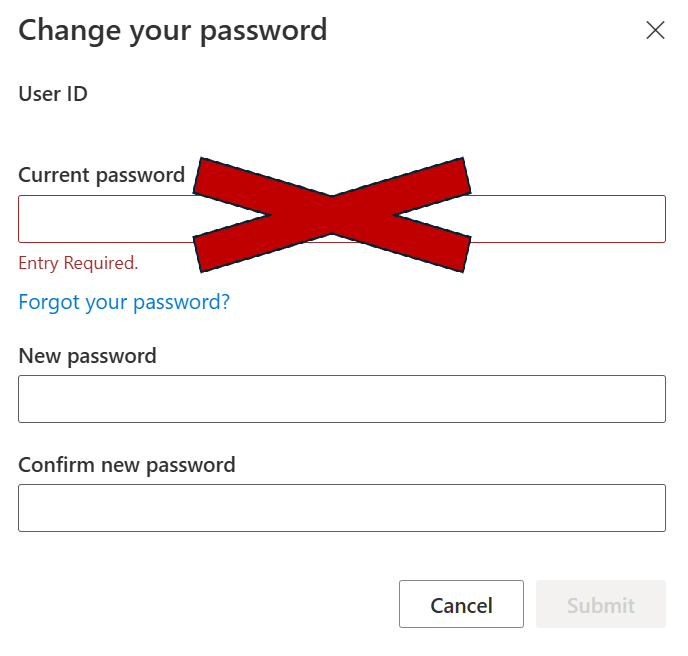
The problem is this requires the end users to know their current password, which with the introduction in 2022 of the Temporary Access Pass authentication method or even with the passwordless authentication method, end users may not know or even remember their password.
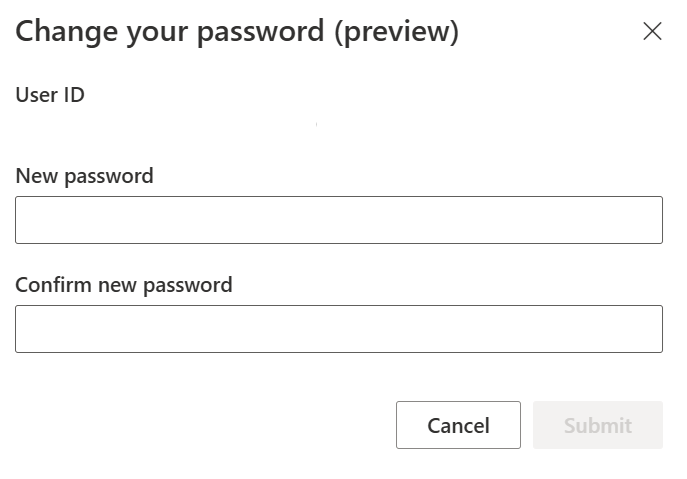
Well, good news as Microsoft is now allowing you to change your password without knowing it (and it is not the famous link “I forgot my password” option) using after a phishing resistant/passwordless authentication.
The supported authentication methods are:
- Entra Certificate-Based Authentication (CBA)
- Passkey
- Microsoft Authenticator Passwordless phone sign-in
This new capability can be useful for users which never knew or forgot (because already using passwordess/passkey authentications) and need to change their password for accessing legacy applications which still rely on username/password authentication.
First thing is you need to have an administrator (at least Authentication Policy Administrator) to update the authentication methods policy for password from the Entra administration portal from the Authentication methods blade (direct link Authentication methods – Microsoft Entra admin center)
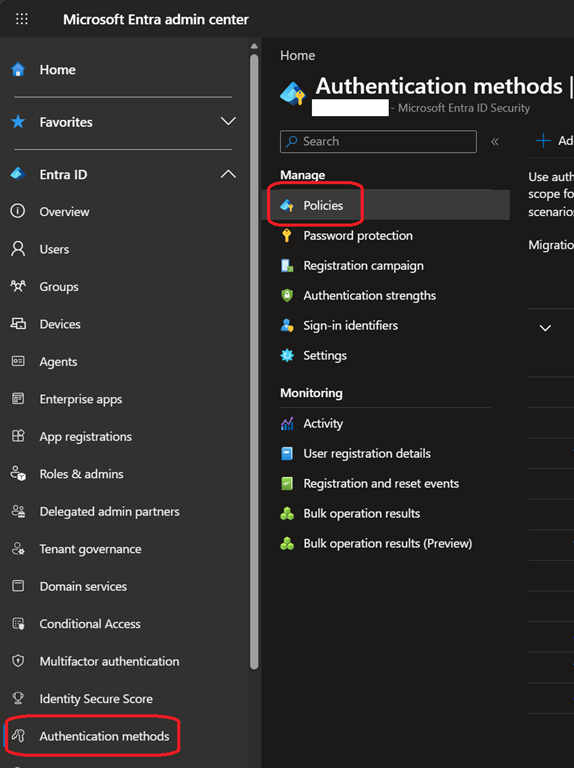
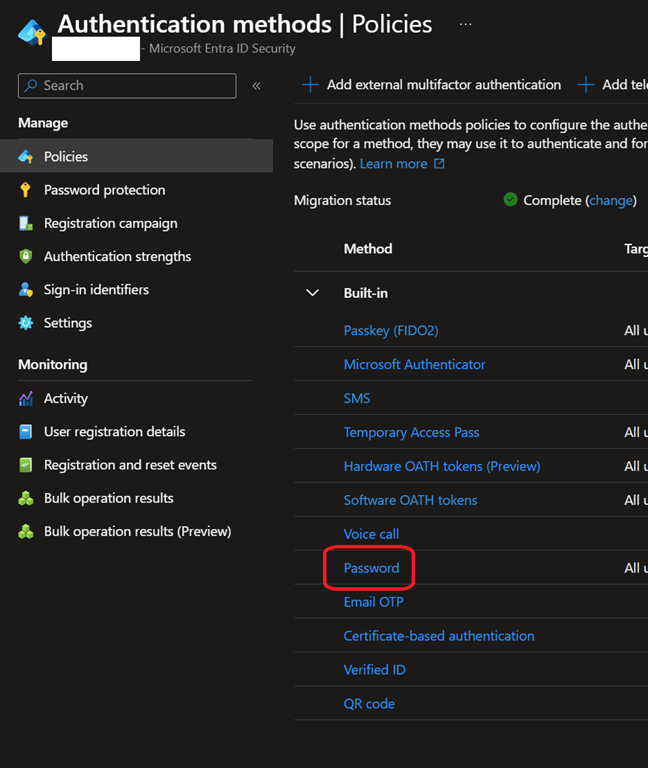
From there administrators should see a new Password authentication method
NOTE it still being deployed across all tenant, so it may not be yet available in your tenant
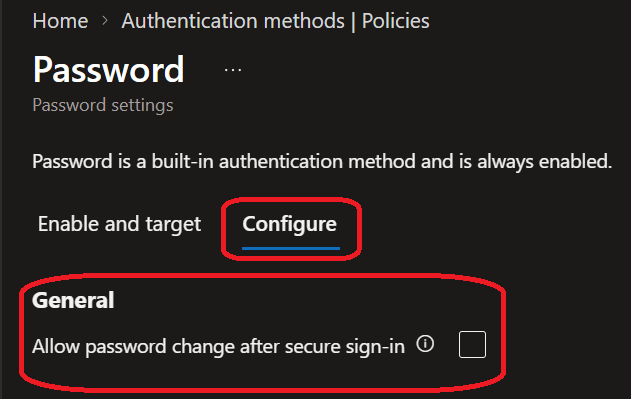
When you edit this Password policy, administrators can Allow password change after secure sign-in from the Configure tab
There is no other option to configure as it is always enabled for all users
Remember users must be registered for passwordless, CBS or passkey first.
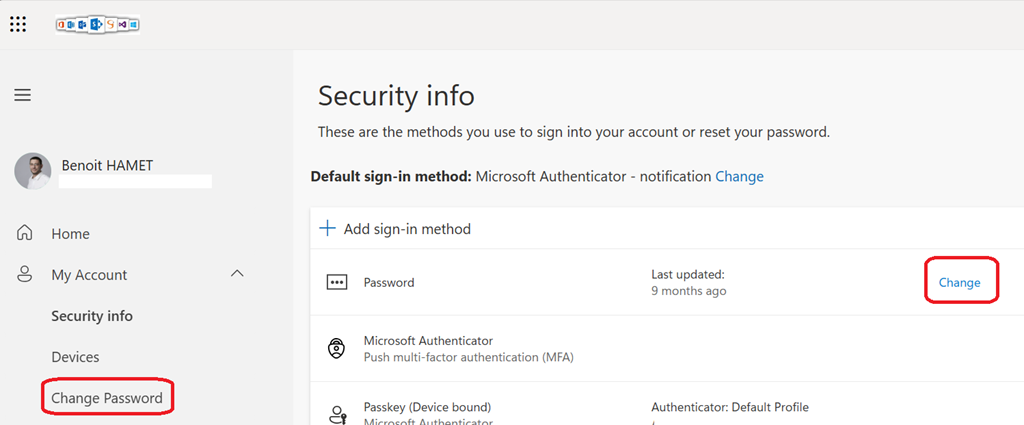
Once enabled, end-users will have to sign-in to the My Sign-Ins portal (https://aka.ms/mysecurityinfo) using one of the supported secure authentication method.
They can then click on the Change link available right of the Password sign-in method or from the Change password option from the left menu
You can note their is no longer the Current password field
If you are running an hybrid environment (syncing accounts from Active Directory to Entra [Entra Cloud Sync is recommended over Entra ID Connect now]), you also need to ensure the option Write back passwords with Entra Connect cloud sync is enable in the Password reset\On-premises integration blade
(Enable Microsoft Entra Password Writeback – Microsoft Entra ID | Microsoft Learn)