If you have been managing Windows devices, you already know that changing IP configuration requires local administrator elevation.
When troubleshooting network connectivity issue, it has always been a pain to either give a temporary local administrator permission to end-user or deal with the UAC elevation prompt to enter a local administrator credentials (including Microsoft Entra Joined Device Local Administrator role).
Well, good news as now with Intune using the Endpoint Privilege Management (coming with EPM, Intune Suite or M365 E3/E5 licenses), you can now give standard end-user permissions to elevate its privileges to update IP configuration.
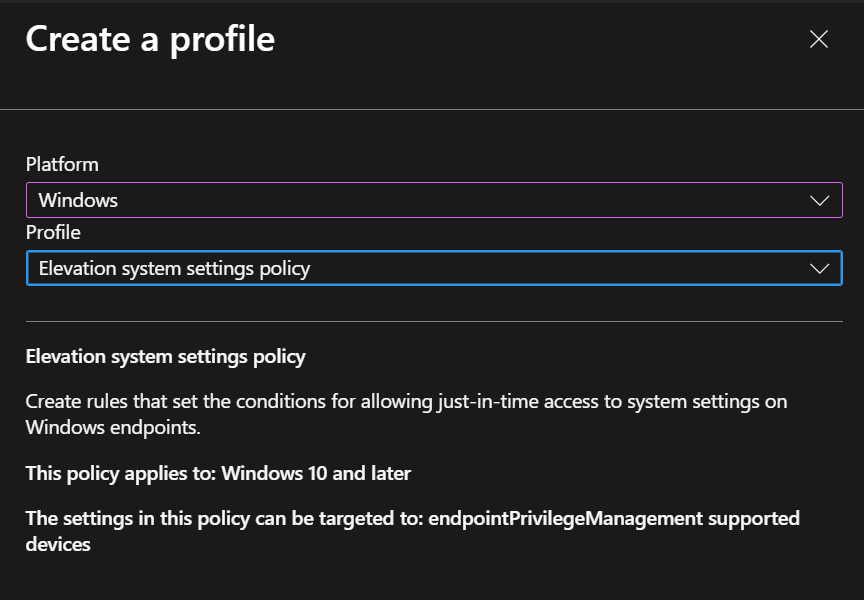
To do so, if you have the proper licensing requirements, you need to create an Endpoint Privilege Management profile from Intune portal (direct link to create this profile Endpoint security – Microsoft Intune admin center).
You need to create an Elevation system settings policy from there
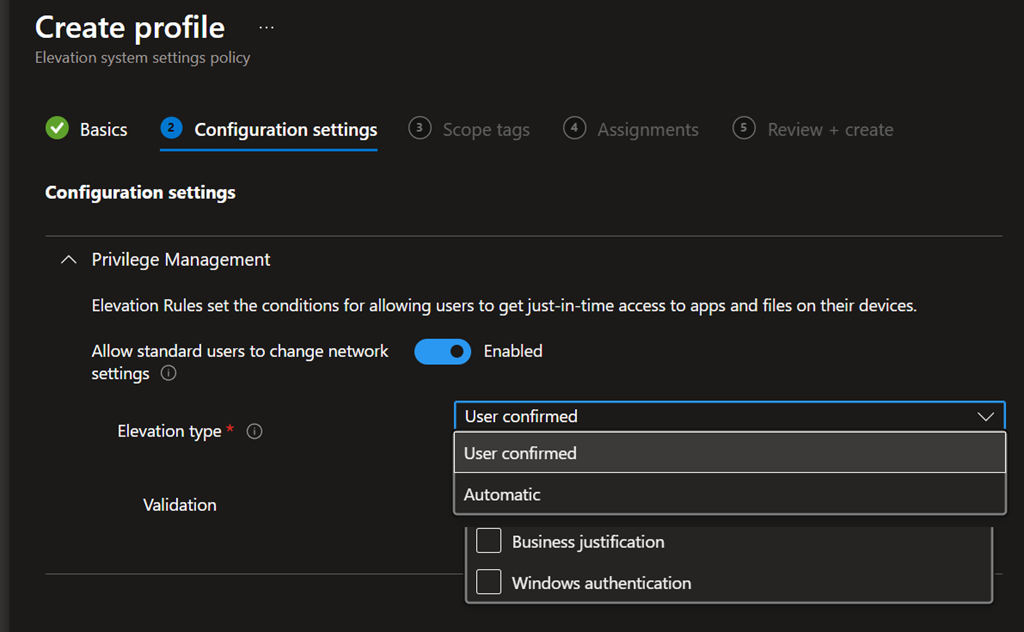
When setting up this setting, administrators will have the choice between 2 elevation modes:
- User confirmed: to either provide a business justification or use Windows Authentication (PIN or biometrics, or both)
- Automatic: which will automatically elevate permissions without any additional request (I would recommend this one)
Once deployed and Windows devices getting the updated configuration, end-user will then be able to change the IP configuration without needing local administrator permissions.
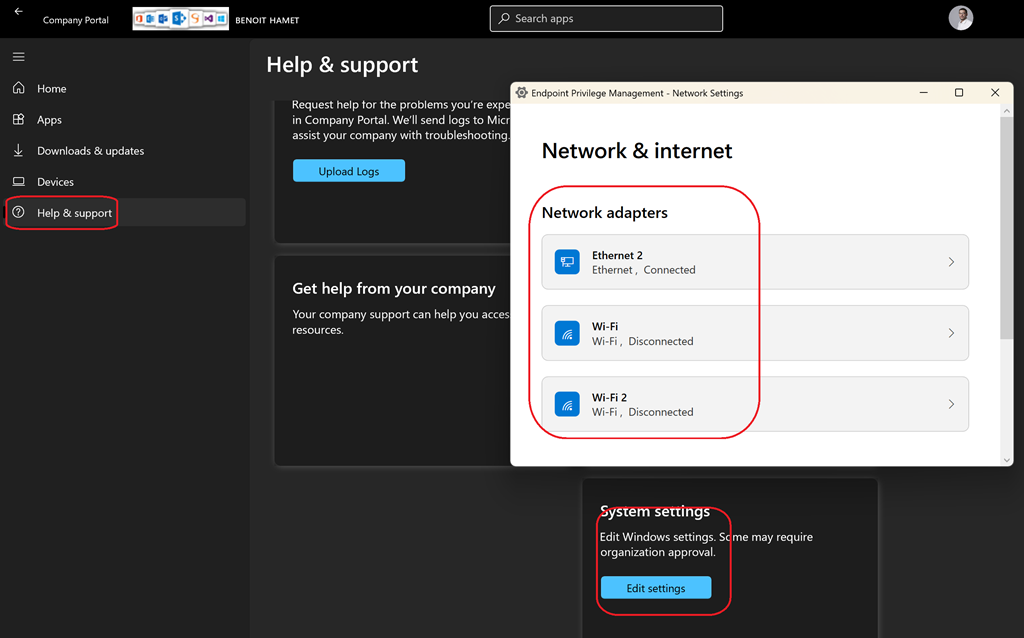
This is being done through the Company Portal\Help & Support\System settings section which will open the EPM elevation pop-up to select the network interface to be updated