

As you know, Entra Global Secure Access (GSA) is an Entra feature which provides Internet, Private and Microsoft services access in a secure way – similar to a VPN.
Well, Entra GSA requires a client to be installed on the client devices (Windows, MacOS, Android or iOS).
Good news, as now you can also get Entra GSA “embedded” into your enterprise browser (Microsoft Edge).
This new capability allows administrators to provide access using GSA to corporate resource using web-browser only access; this can be very helpful for front-liners which are using web browser only to access company resources.
The licensing requirements are the same as for the “client based” GSA (either as standalone add-on, Entra Suite or M365 E7).
This licensing requirement is firstly to get your Entra tenant onboarded for Global Secure Access, and then to assign the corresponding GSA profile(s) to end-users.
Now, if you want to implement GSA with enterprise browser, you need to use:
- Global Secure Access Administrator role to configure GSA
- Application Administrator role to configure traffic forwarding profiles and Private Access enterprise applications and connector groups
- Edge Administrator role to configure Edge policy in M365 administration portal
- Have your tenant configured for targeted release (Set up the Standard or Targeted release options for Microsoft 365 services – Microsoft 365 admin | Microsoft Learn) or the access the secure enterprise browser settings (Microsoft Edge – Microsoft 365 admin center)
- Microsoft Edge on Windows or MacOS version 157.0.4341.46 or newer
NOTE 1 it is important to note that GSA enterprise browser access can only be managed from the M365 portal, there is no application policy in Intune for it
NOTE 2 if the Windows client device also have GSA client installed, it can still be enabled; there is no conflict to have both enterprise browser and GSA client active. On MacOS devices, the GSA client must be disabled or there will be certificate prompt errors.
NOTE 3 to get GSA with enterprise browser working, end-users must be signed-in with their work account in Edge (remember you can enforce the sign-in in Edge using Intune configuration profile)
Now, let’s start the configuration:
Configure GSA Traffic Forwarding
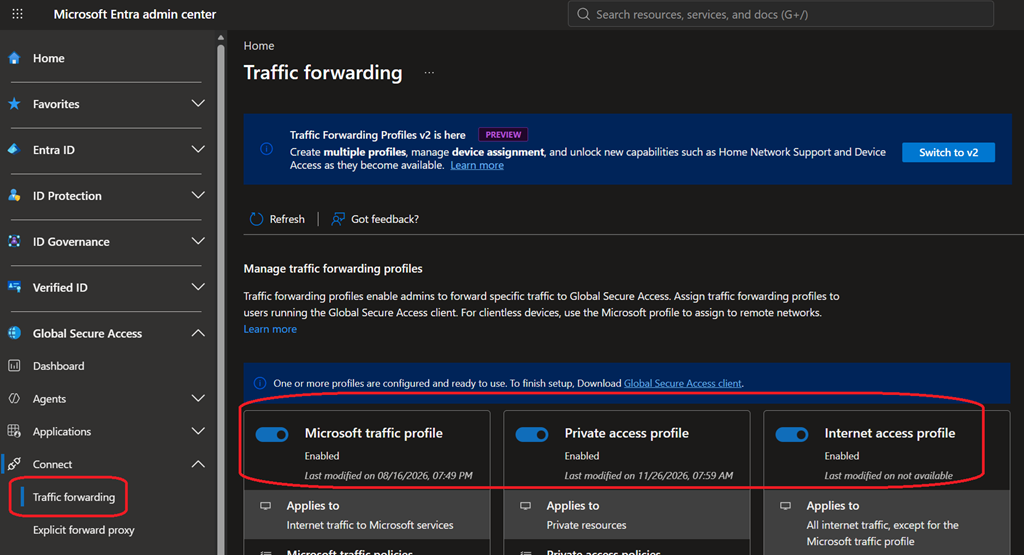
- Connect to your Entra portal with GSA Administrator role to access the Global Secure Access\Connect\Traffic Forwarding blade to enable/assign the profile(s) (Traffic forwarding – Microsoft Entra admin center)
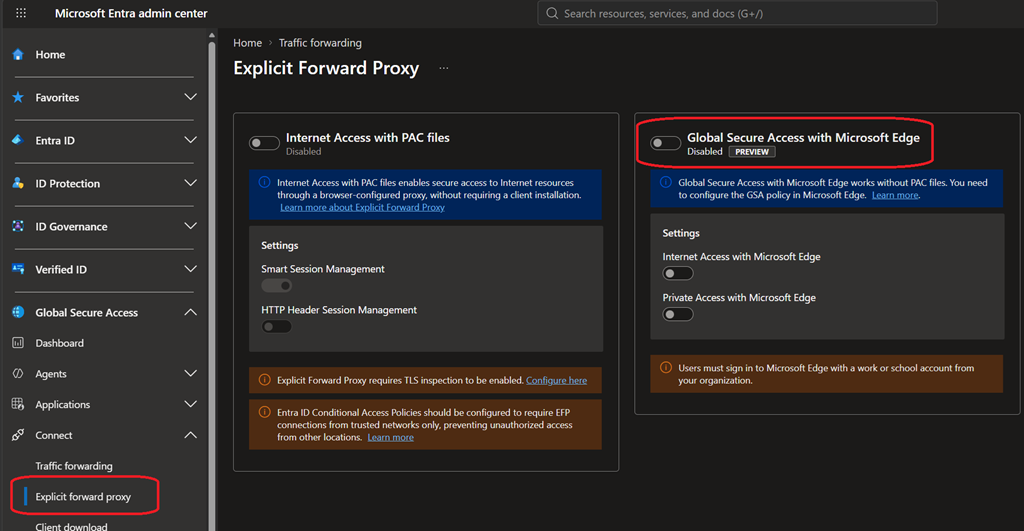
- Next access the Global Secure Access\Connect\Explicit forward proxy blade (Explicit Forward Proxy – Microsoft Entra admin center) to enable the Global Secure Access with Microsoft Edge setting to enable either Internet (which includes M365 services too) and/or Private access
Configure Edge policy
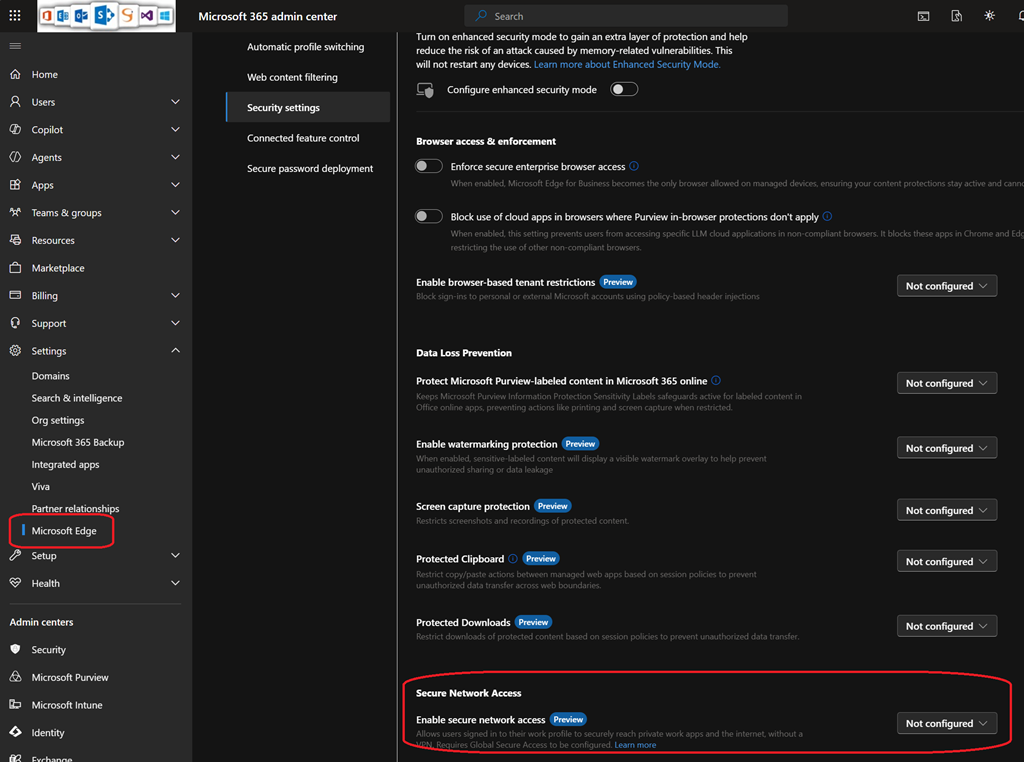
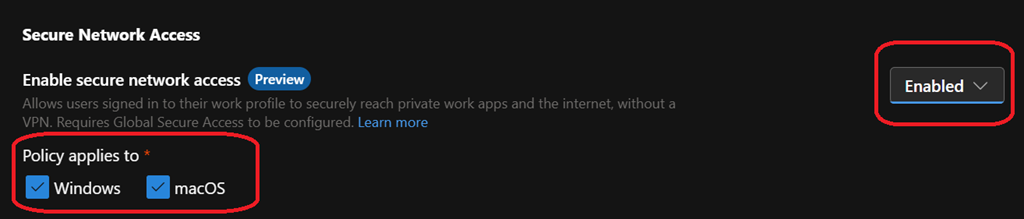
- Connect to your M365 administration portal with Edge Administrator role to enable Edge protection settings to create/edit existing Edge policy and enable the Secure Network Access option (Microsoft Edge – Microsoft 365 admin center) (apply it only to Windows or macOS platforms) and ensure this applies to proper users/groups
Ensure your are not editing/creating an Intune Edge policy or you will get error when saving the update
Once all configured, you can check if the policy is being applied using the edge://policy after you have signed in in Edge using your work account.