If you are using Microsoft cloud solutions (M365 or Azure), you already know that authentication and access control to these services rely on Entra ID (formerly Azure Active Directory).
Then you know Entra ID administrators can control authentication methods supported for authentication against the tenant (from MFA to QR code or OATH tokens).
One authentication method usually not well understood or used is Temporary Access Pass (Configure a Temporary Access Pass in Microsoft Entra ID to register passwordless authentication methods – Microsoft Entra ID | Microsoft Learn) which allows generating a temporary password without changing the user’s password.
When used, TAP authentication is mostly used by IT team when setting up device on behalf of the end users by passing the need to register for MFA (which obviously is not what you want as IT support team will register MFA on behalf of the end-user).
Well, do you know that TAP can also be used to allow end users to re-register for MFA?
Why this is important to know? Simply most Entra ID MFA authentication methods relies on Microsoft Authenticator App, which can be backed up and restored on (new) devices.
The problem with the Authenticator App backup/restore process is MFA linked with Entra ID tenants is not successfully restored and you need to re-register your device; which leads to endless loop of MFA request when trying to authenticate.
Because of the sensitivity of the process, there is no self-service capability available to end-user and you need to have your IT support team to work with you to set the TAP.
Let’s try to clarify the situation with the following scenario:
- User has been successfully onboarded on your tenant and registered for MFA using Authenticator App
- User either lost or got a new device (previously MFA registered device is no longer accessible) and restore Authenticator app to the new device
- User tries to logon on tenant but got stuck with MFA request as the registered device is no longer available
Most of the time when this happen, IT support team will go to Entra ID portal and request to Require re-register multifactor authentication for the user account
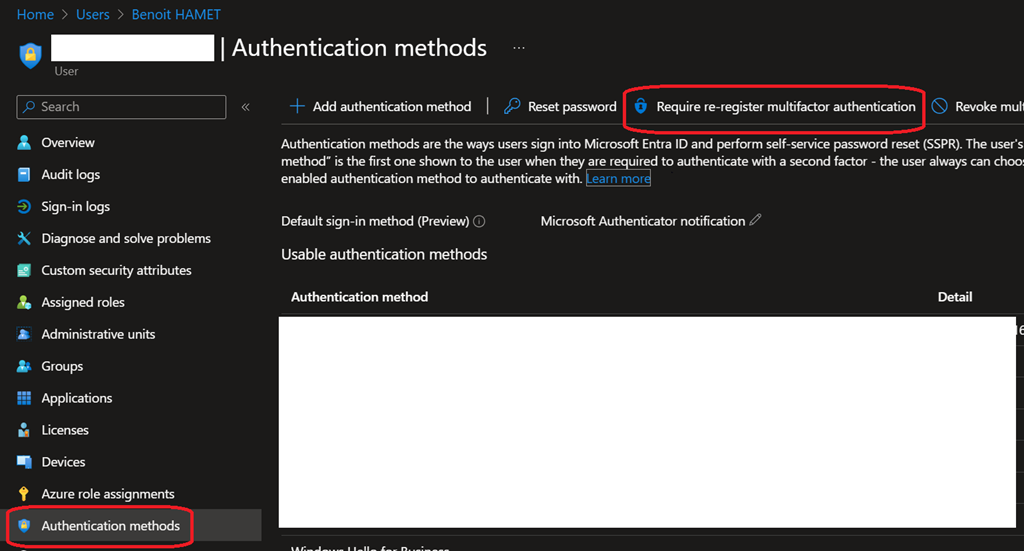
Then end-user will then be requested for MFA registration again next time trying to logon to the tenant but it relies on proper either MFA Registration and/or Conditional Access policies.
When using Temporary Access Pass, end-user can then logon properly to My Account portal (My Account) to re-register MFA, bypassing MFA requirements for a limited time.
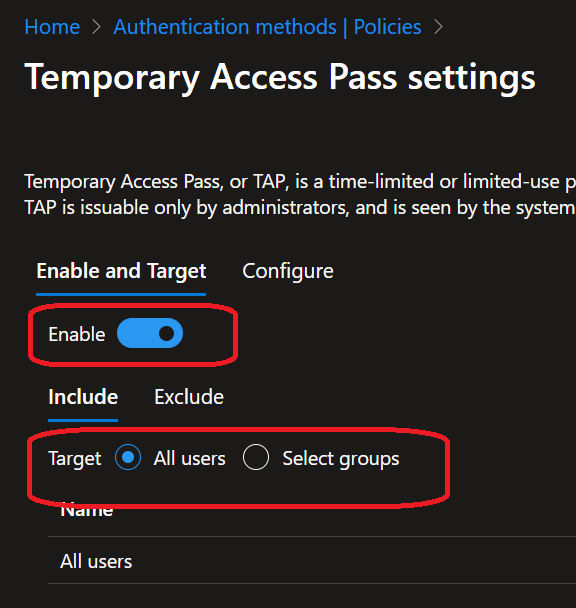
To be able to use it, you need first to enable Temporary Access Pass authentication method, then an IT support team member will be able to get a temporary password (not changing user’s password) to access My Account portal to re-register for MFA.
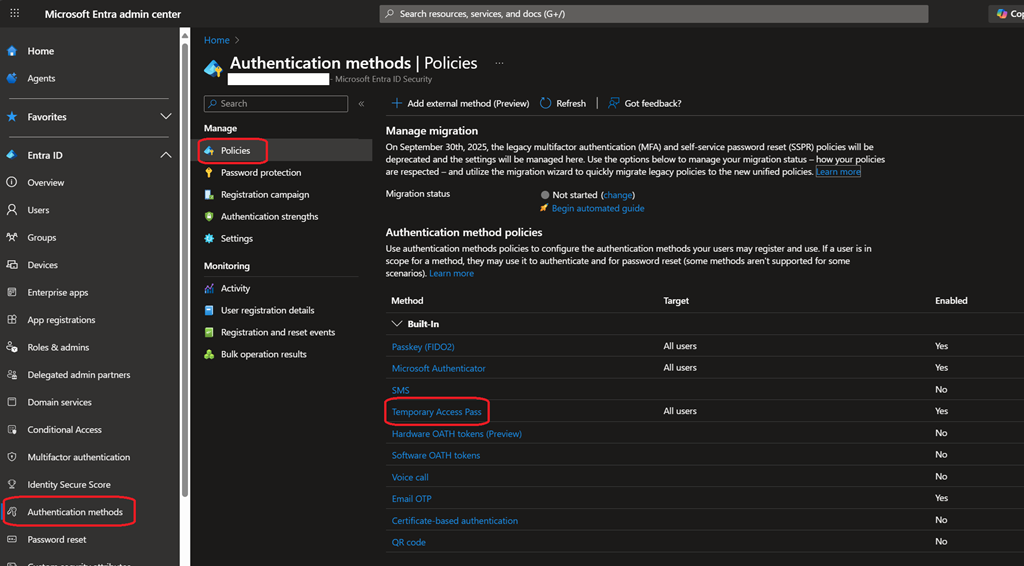
- To enable Temporary Access Pass you need to connect to Entra ID portal (Microsoft Entra – Microsoft Entra admin center) to access the Authentication Methods blade and enable it from the Policies option
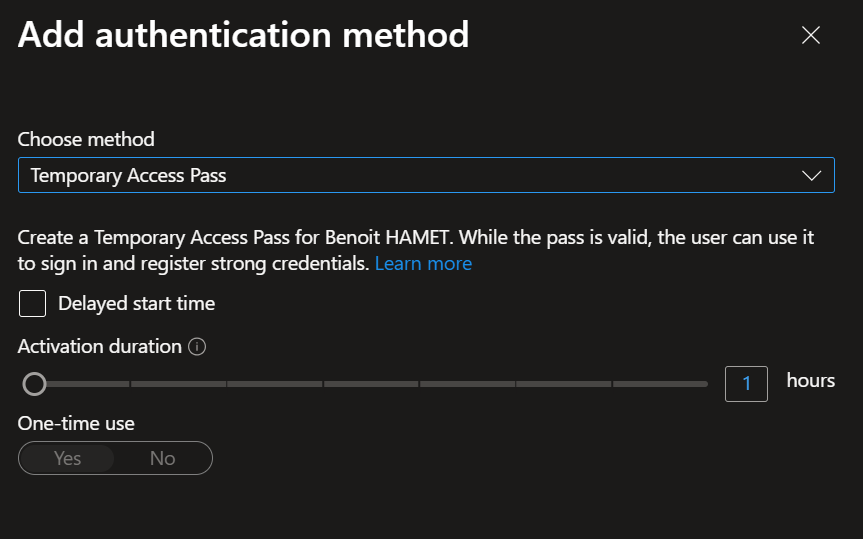
- Then go to the end-user account’s authentication methods blade to request a temporary password using the Add authentication method
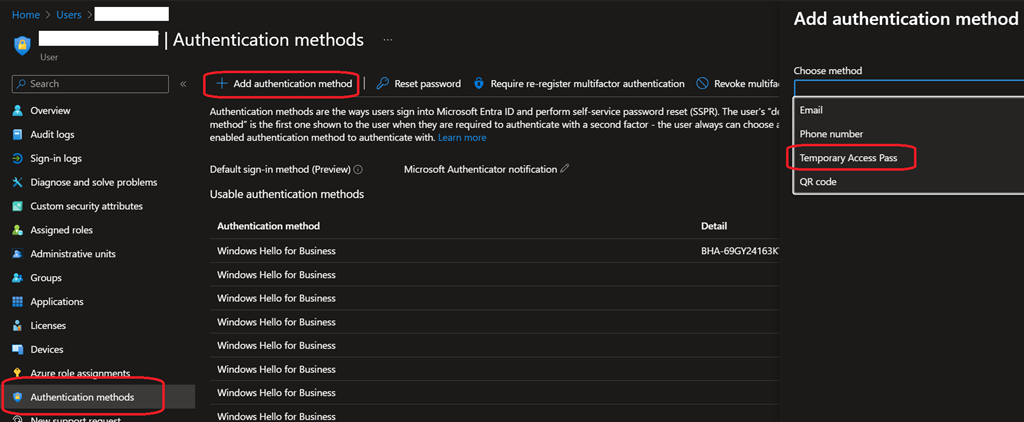
- Finally set the temporary password duration and instruct end-user to use the temporary password to connect to My Account portal for re-registering for MFA