

With the release of the latest version of Entra ID Connect (2.5.76.0, available for download from the Entra ID portal )Microsoft Entra Connect – Microsoft Entra admin center) (and Entra ID Cloud Sync – 1.1.1370.0), you can now change the source of authority for synchronized groups.
With the move to ‘cloud first’ approach, there has been still a remaining friction with the identity (users/groups) management between synchronized Active Directory objects and cloud-only ones on Entra.
Well, good news as you can now change the source of authority for synchronized groups to move from Active Directory to Entra ID.
The solution, still in preview, requires a bit of planning to ensure you clean up your unused groups and/or no longer requires on-premises groups management.
After you have upgraded your directory synchronization tool, you can prepare for the change of source of authority by granting the proper permissions using Microsoft Graph.
Do so, you must have either Application Administrator or Cloud Application Administrator role assigned.
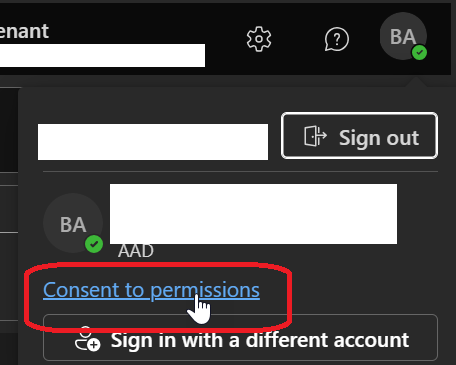
Connect the Microsoft Graph and authenticate Graph Explorer | Try Microsoft Graph APIs – Microsoft Graph and open the Consent to permissions
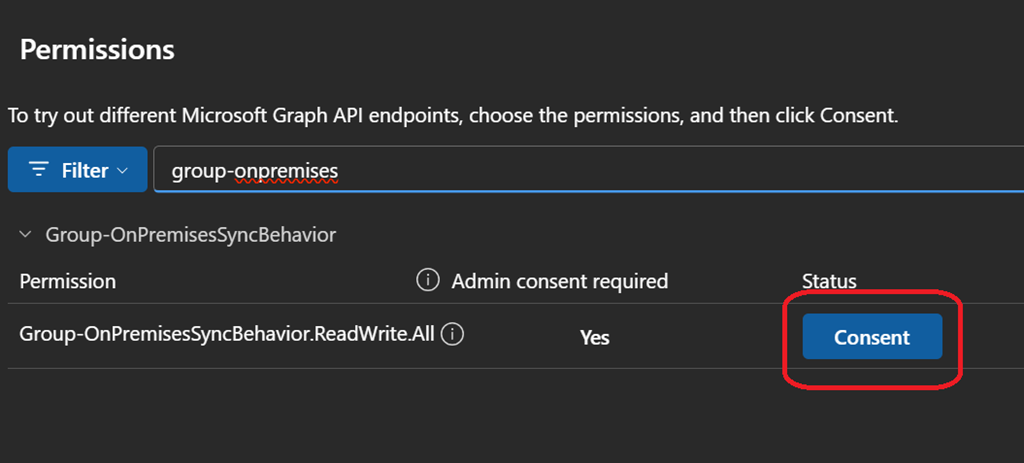
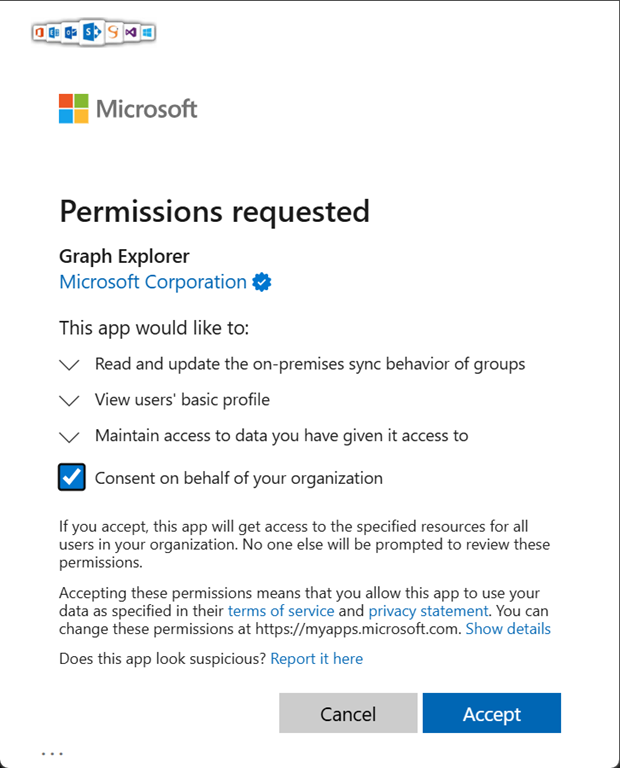
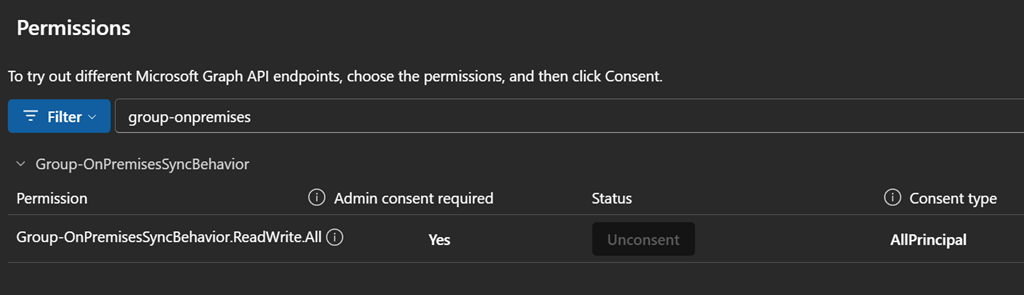
Search for Group-OnPremisesSyncBehavior and consent and approve for the permissions
Next you can then change the source of authority for a group
NOTE with the change of source of authority, any changes done on Active Directory will no longer replicate to Entra ID. Any changes done on Active Directory will be overwritten by Entra ID during the next synchronization cycle.
As this feature is currently in preview, you have to work with Microsoft Graph. We can expect hopefully an integration directly with the Entra ID portal when it is going to reach general availability.
To change the source of authority of a synched group, using Entra ID portal search for the group you want to update and grab the object id of the group.
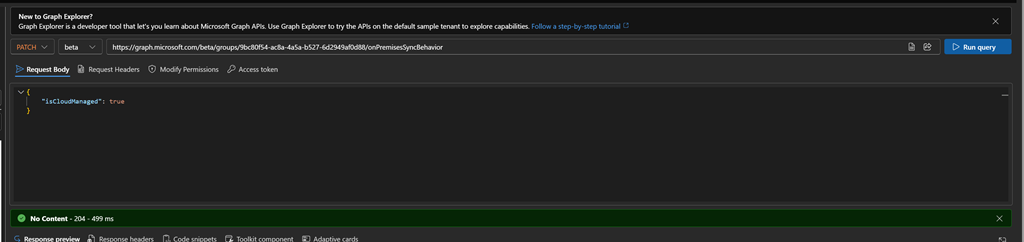
With Microsoft Graph, run the update command to set the isCloudManaged attribute to true
If successful, you will get the No Content – 204 result
PATCH https://graph.microsoft.com/beta/groups/{group id}/onPremisesSyncBehavior
{
“isCloudManaged”: true
}
When you look at the group in Entra ID portal, the Source has changed from Windows Server AD to Cloud.
You can now manage the updated group from Entra ID portal only.
You can off course rollback by switching the isCloudManaged attribute back to false.
If you are ready to bulk update your groups, you can use the PowerShell script using an application based authentication.
# Define your Microsoft Entra ID app details and tenant information
$tenantId = “”
$clientId = “”
$certThumbprint = “”# Connect to Microsoft Graph as App-Only using a certificate. The app registration must have the Group.Read.All Group-OnPremisesSyncBehavior.ReadWrite.All permissions granted.
Connect-MgGraph -ClientId $clientId -TenantId $tenantId -CertificateThumbprint $certThumbprint#Connect to Microsoft Graph using delegated permissions
#Connect-MgGraph -Scopes “Group.Read.All Group-OnPremisesSyncBehavior.ReadWrite.All” -TenantId $tenantId# Define the group name you want to query
$groupName = “HR India”# Retrieve the group using group name
$group = Get-MgBetaGroup -Filter “displayName eq ‘$groupName'”# Ensure group is found
if ($null -ne $group)
{
$groupObjectID = $($group.Id)
# Define the Microsoft Graph API endpoint for the group
$url = “https://graph.microsoft.com/beta/groups/$groupObjectID/onPremisesSyncBehavior”# Define the JSON payload for the PATCH request
$jsonPayload = @{
isCloudManaged = “true”
} | ConvertTo-Json# Make the PATCH request to update the JSON payload
Invoke-MgGraphRequest -Uri $url -Method Patch -ContentType “application/json” -Body $jsonPayload$result = Invoke-MgGraphRequest -Method Get -Uri “https://graph.microsoft.com/beta/groups/$groupObjectID/onPremisesSyncBehavior?`$select=id,isCloudManaged”
Write-Host “Group Name: $($group.DisplayName)”
Write-Host “Group ID: $($result.id)”
Write-Host “SOA Converted: $($result.isCloudManaged)”
}
else
{
Write-Warning “Group ‘$groupName’ not found.”
}