

As you know, you can host web applications on Azure using Azure Application Services (also called Azure Web Apps).
From time to time, something may goes wrong and the web application stops servicing request in a way or another. This has always been a difficult troubleshooting task as there are so many different components and teams involved: is it the latest release of the app which broke the service, is it a configuration update on Azure…?
Well, Azure has been updated to provide a new diagnostic tool for Application Services to help you find where is the culprits. The new Azure Monitor application is using Microsoft Graph to help identify issues.
It can come in addition of Application Insights which is more helpful to troubleshoot application code itself.
Enable the change analysis tool
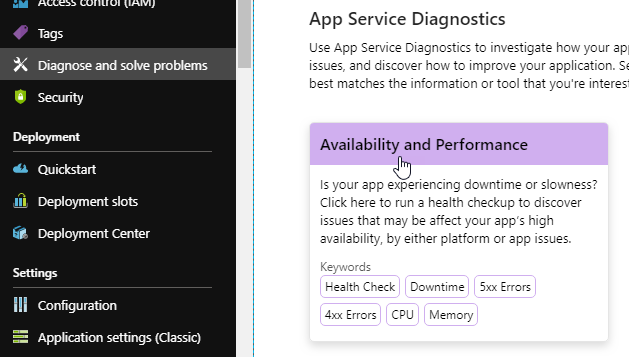
To start troubleshooting with this new tool, reach out the web application causing troubles and access the Diagnose and solve problems blade – either from the blade menu or the Overview page

Choose Availability and Performance and scroll down a little to get to Application Crashes tile
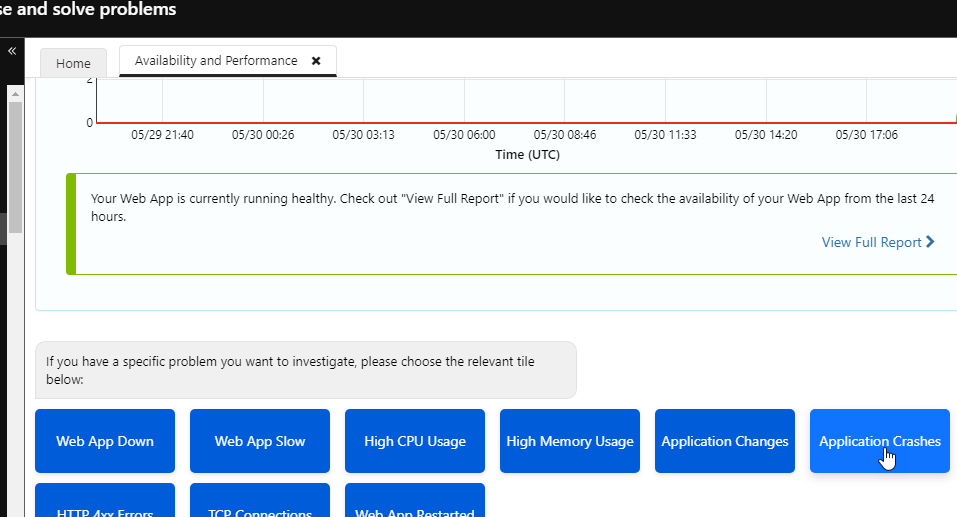
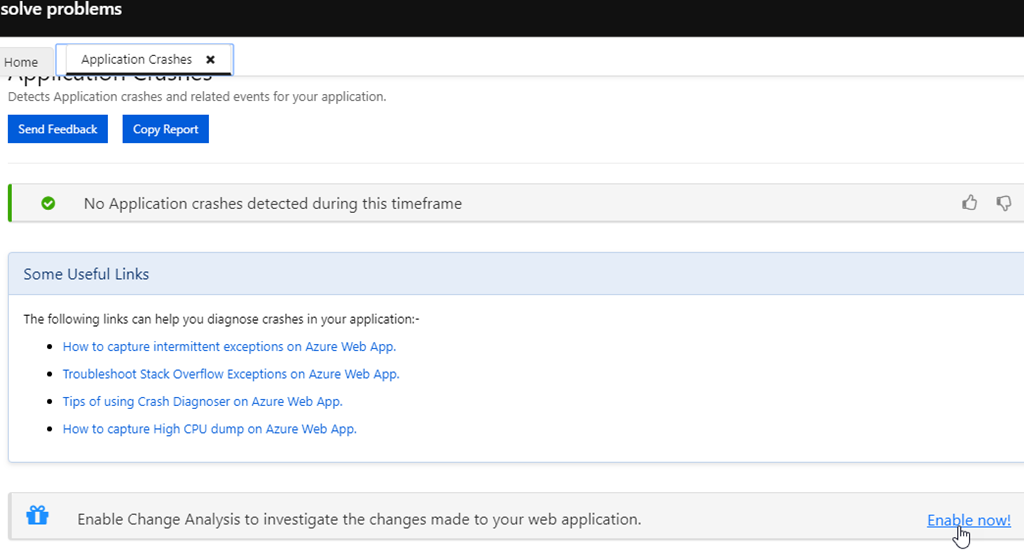
Enable the Change Analysis capabilities at the bottom and turn on the service; you may be requested to also update your web application to be Always on; this will optimize the change scanning process but may involve additional cost.
The Change Analysis option is looking at the resource level while Scan for code change is looking at deployment files and site configuration changes.

Once this is enabled you will be able to see what happen in the Diagnose and solve problems\Availability and Performance\Application Changes blade.
For example, if you update a tag, change the App Service plan or have a new code deployed, the Change Analysis will then show what has been executed/changed and when, helping to find the point in time which caused the trouble.
For the demonstration here, I have updated a tag and changed the service plan. The Application Changes title help me find configuration changes and tells me what has been changed and by who the activity has been initiated
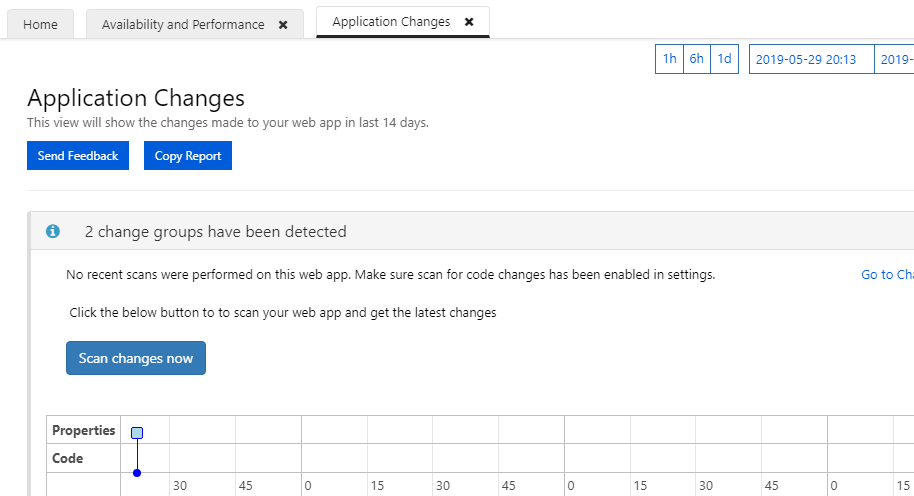
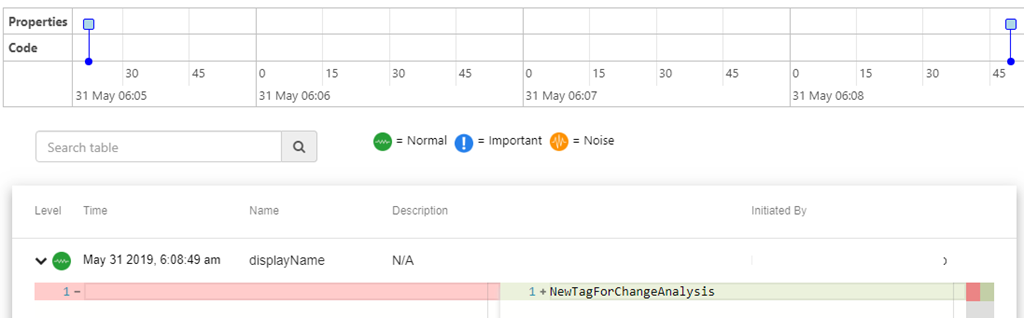
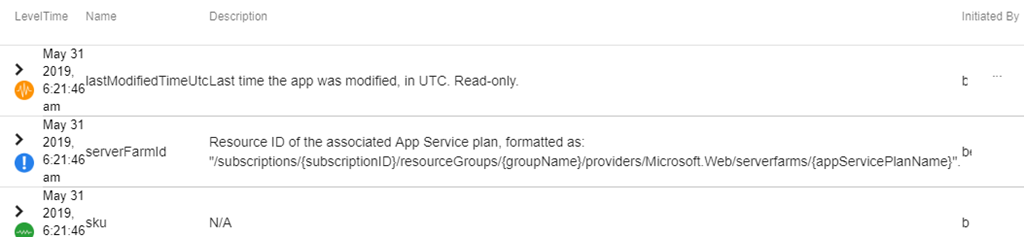
You can also then use the Scan change now to force new detection.