

Starting mid-October 2026 until end of November (preview between mid-October to end of October, GA from mid-November to end of November), a new capability is being added on the Apps admin center (Microsoft 365 Apps admin center) – the portal to manage Office apps installation, configuration and monitoring.
The new capability will allow a remote online repair of outdated or broken Office applications on Windows from the M365 Apps administration portal.
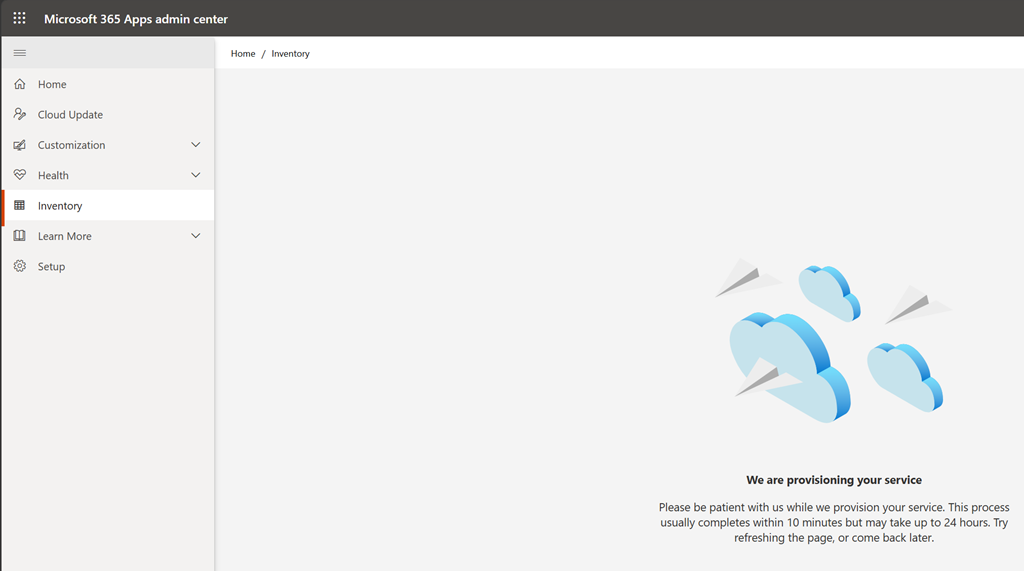
First is you need to ensure the Inventory is enabled in your tenant;if not it is easy to enable it and it may take up to 24 h to complete
To enable/check if Inventory is enabled on your tenant, connect to the App admin center with an administrator account with at least Office Apps Administrator role to access the Inventory blade (direct link Home – Microsoft 365 Apps admin center).
If not enabled, it will automatically start provisioning the inventory capability
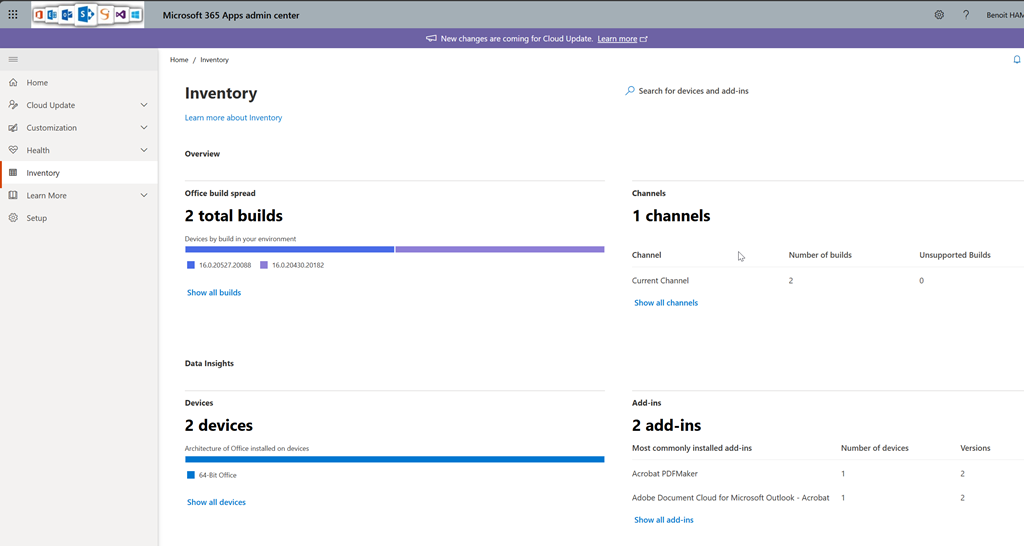
If enabled, it will show you your Office applications estate (devices, installed build numbers, update channel…)
Second requirement, Office applications must be running at least 16.0.20326.20000 build number.
Once these requirements are met and a device (or more) need repair or attention a banner will be shown when connecting to the Apps admin portal and from the Inventory blade.
The banner will provide a link to review impacted devices which then will allow to select Update/Repair.
Off course, before remediating impacted Office installation you will need to communicate to the end-user as the repair action will shutdown opened Office application.
Devices which are 3 or more version behind will show up as Needs attention.
Other reasons that a device will be listed as needs attention are:
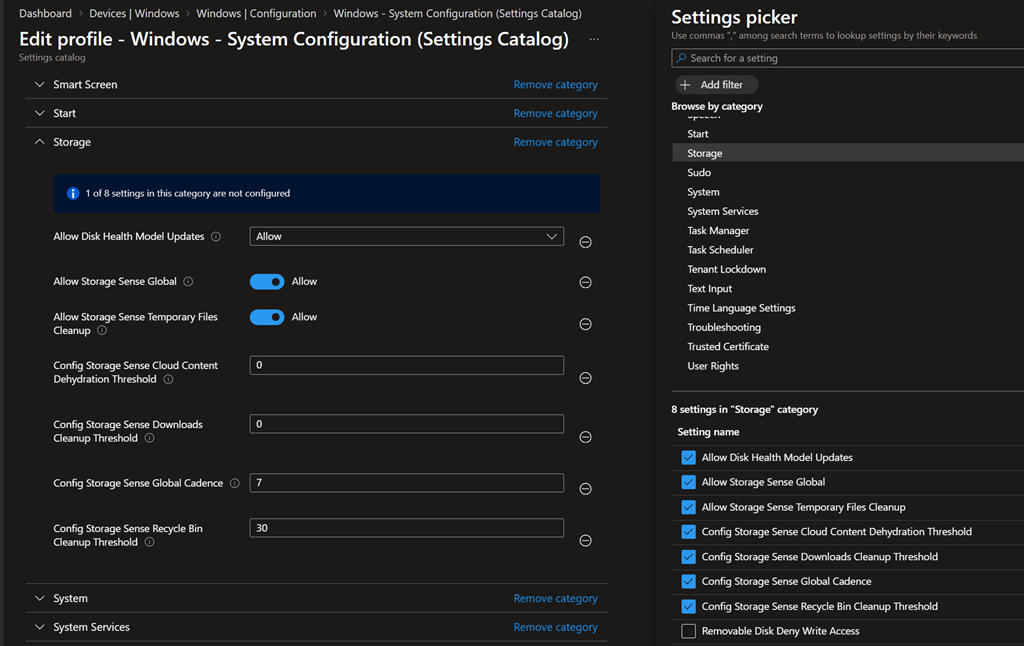
- Disk space – error codes 112, 30192, 30179. Remember you can run an automatic disk space cleanup task using Intune using the Storage settings from Settings Catalog
- Permissions – error codes 5, 181
- File or package issues – error codes 151, 183, 30195, 30182. This requires Office repair
- Metadata or file integrity – error codes 30058, 30045. Same as above
- Configuration issue – error codes 148, 153, 158. Update the configuration settings (likely XML configuration file)
- System preconditions – error codes 146, 147, 149. Restart the device
- Persistent network issues – error codes 150, 159, 172. Review network connectivity, proxy and/or firewall rules