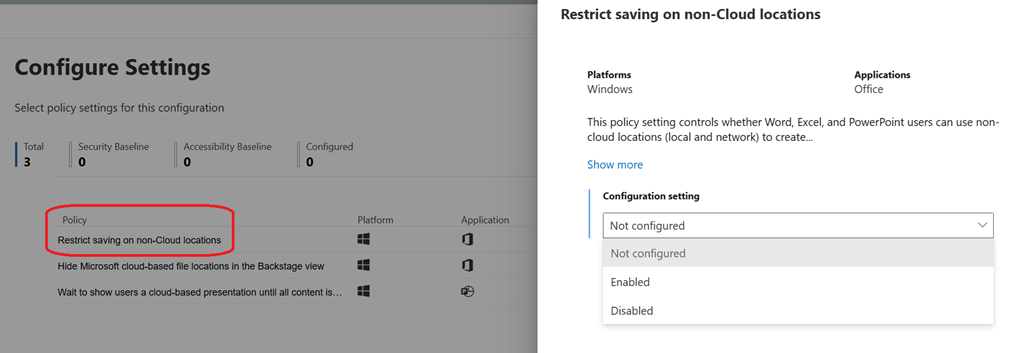
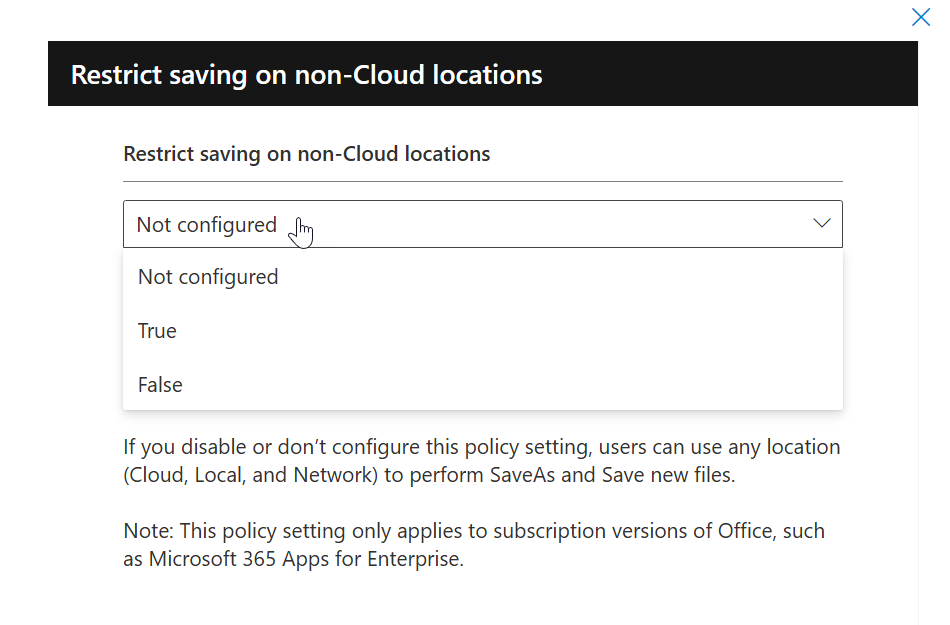
IT Administrators can restrict new file creation in Word, Excel, and PowerPoint on Windows to Cloud Locations only, enhancing security and compliance.
This policy, deployable via Group Policy or Cloud Policy Service, limits saving new files to OneDrive, SharePoint, or third-party Clouds, promoting cloud usage and protection.
It is important to properly identify the use case when implementing this policy as there may still be need for your end-users to create locally (local drives or network shares) Office files.
It does not block downloading locally the file(s) from the cloud service; for this you will need to implement a different configuration – such as Block download policy for SharePoint sites and OneDrive – SharePoint in Microsoft 365 | Microsoft Learn.
To implement this policy, you can use either Active Directory Group Policy using the most recent version (at least 5516.1000 version) of the Office ADMX files (Download Administrative Template files (ADMX/ADML) for Microsoft Office from Official Microsoft Download Center) or the cloud policy service from M365 apps admin center (Microsoft 365 Apps admin center).
In addition, your Office version must be at least version 2506 (Build 19029.20000).
Off course, this does not impact the well-known folders redirection to OneDrive.
- Using Group Policy
- Configure the Restrict saving on non-cloud location setting under the User Configuration\Administrative Templates\Office 2016\Miscellaneous branch
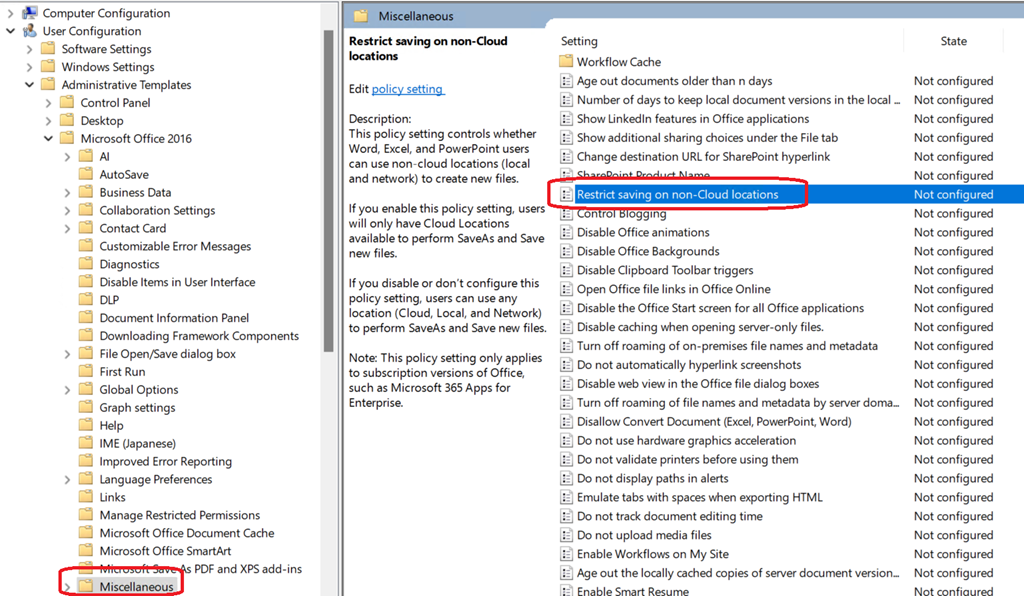
- Using Cloud Policy Service – for both options, the setting is available for the Office app
- Connect to your M365 Apps admin center (Microsoft 365 Apps admin center) to access the Customization\Policy Management blade to edit/create a new policy
- Search for Restrict saving on non-cloud location setting to enable/disable it
- You can also set this setting using the custom XML setup configuration