

An important change is coming for Chromium-based browsers (Google Chrome and Microsoft Edge) which will impact offline access to Office 365 services using web browser.
You need to act before end of September (before Chromium 141 is being rolled out).
The change introduced with Chromium 141 is related to privacy settings which will increase restrictions accessing local network.
When enforcement begins, users accessing OneDrive for Web (and some integrated Microsoft 365 experiences such as Microsoft Lists and SharePoint Document Libraries) will encounter a browser permission prompt for local network access unless the required policy is in place.
This means if you don’t setup the proper permission, offline capabilities will not be available.
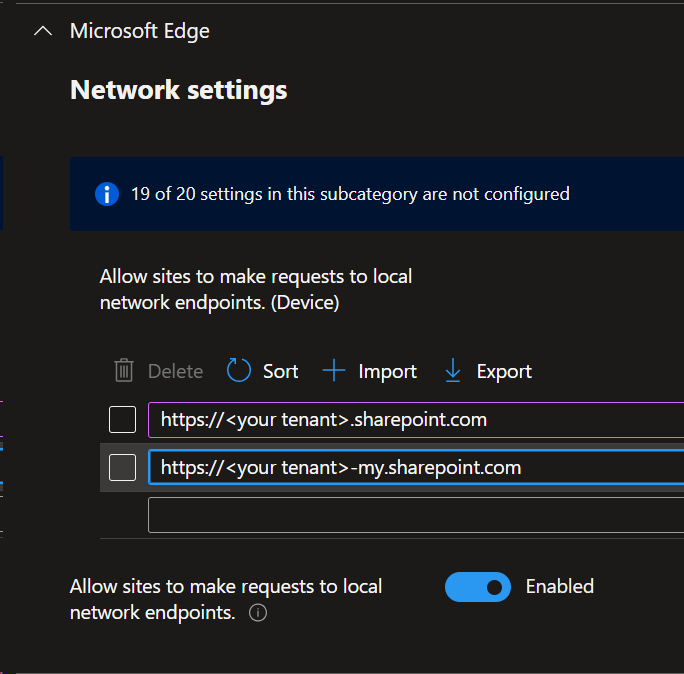
To configure the proper permission to avoid such situation, you can use Intune (or AD Group Policy, or registry) to set the LocalNetworkAccessAllowedForUrls setting for both Edge and Chrome with your SharePoint Online tenant (https://<your tenant>-my.sharepoint.com and https://<your tenant>.sharepoint.com)) and/or any additional variation (aka other tenants).
NOTE if you already have set your tenant (or any other variation) to allow ‘Open with Explorer’, you still need to configure this setting as this relates to a different behavior.
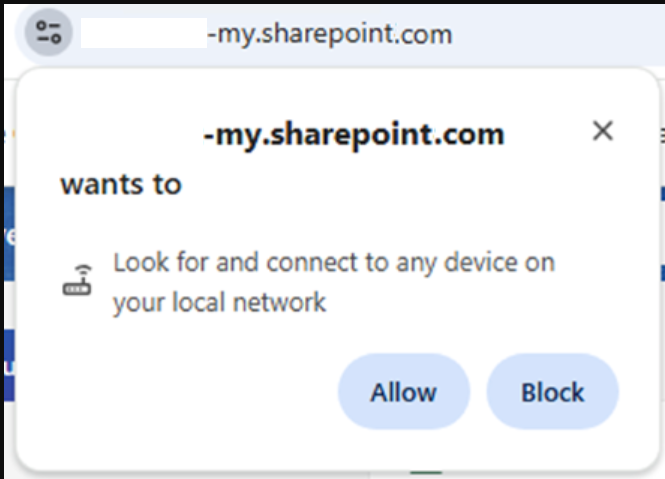
If you don’t configure it, your support desk may ended with increase support request and end-user will get a prompt similar to the below screenshot
- For Edge
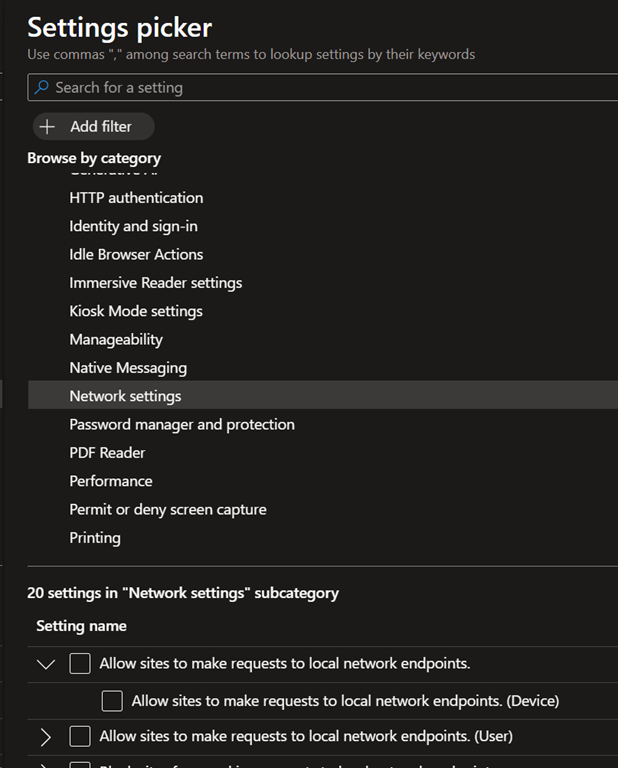
- Configuration with Intune
- Enable the Allow sites to make request to local network endpoints (either device or user) under the Microsoft Edge\Network Settings branch
- Registry
- Under either Computer or User configuration create/configure a String key type named 1,2,3… under SOFTWARE\Policies\Microsoft\Edge\LocalNetworkAccessAllowedForUrl
- For Chrome
- Registry
- Under either Computer or User configuration create/configure a String key type named 1,2,3… under SOFTWARE\Policies\Google\Chrome\LocalNetworkAccessAllowedForUrls