As you may already know, Microsoft has been transitioning to a new Outlook client to provide better integration and feature updates with Exchange Online than the classic Outlook provided with M365 applications.
Well, starting October, if end-users already have their mailbox configured with the classic Outlook client AND the new Outlook client is installed, the new Outlook client will automatically set it up with the settings from the classic Outlook.
This update does not change:
- previously communicated migration opt-out timelines: January 2026 for EDU and April 2026 for Enterprise
- does not force the launch or usage of the new Outlook, nor does it modify any existing classic Outlook settings or defaults
If a user’s primary account in classic Outlook is an Exchange Online account, and the new Outlook toggle is available (not hidden by policy), and the new Outlook is installed on their device, then their accounts and settings will be automatically configured in the new Outlook when they launch classic Outlook. This setup occurs in the background and does not alter existing accounts, settings, or defaults.
You can find what is going to be configured from classic Outlook from Import settings and install add-ins on new Outlook for Windows – Microsoft Support
Administrators can control this behaviour using either registry, group policy or cloud policy.
- Registry
- Path: HKEY_CURRENT_USER\Software\Policies\Microsoft\office\16.0\outlook\preferences
- Key: NewOutlookAutomaticSetupUserSetting
- Key Type: DWORD
- Key values:
- 0 >> disabled
- 1 >> enabled
- Cloud policy
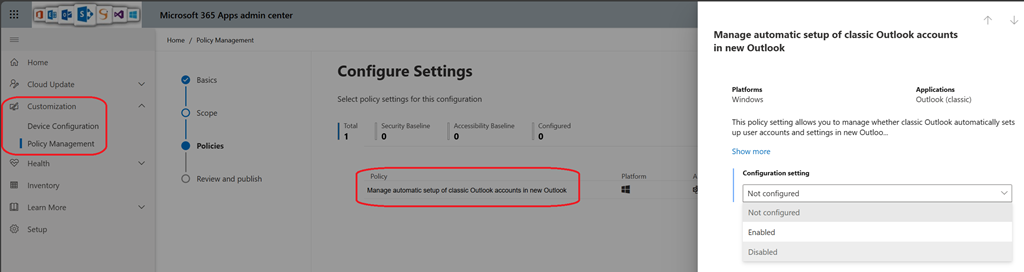
- Connect to Microsoft 365 apps admin center (https://config.office.com/) to access the Customization\Policy Management blade to create/edit a policy
- Search for “Manage automatic setup of classic Outlook accounts in new Outlook” and set to corresponding value; note: the “Not configured” will automatically enabled the configuration