

As announced at the Ignite 2017 Conference, a âselfâ migration tool is currently in preview to help you migrate files from on-premises environments (SharePoint or file shares) to SharePoint Online.
As usual, the migration is just the end state; you still need to assess, plan and prepare to ensure your environment is ready for the migration and future use, including network performance or identity management or the permissions to be set after the migration.
Prerequisites
To be able to use the migration tool you must have the following prerequisites:
- Windows Server 2008 R2 or Windows 7 at minimum â recommended is Windows Server 2012 R2 or Windows 10
- 8 Gb of RAM â recommended 16 Gb
- .Net Framework 4.6.2 installed
- Internet connection (do not forget if you are using a proxy server you need to ensure your configuration is matching the recommended one, like no authentication required to access Office 365 services)
NOTE migrating from SharePoint On Premises is currently only supported with SharePoint 2013
Prepare your environment
As the migration tool will need to read your source, you need to ensure you have set the appropriate permissions.
So you need to have the account going to be used to authenticate against the source environment to be set with Read permissions at the source.
If you have multiple sources to analyze and migrate, you can use a CSV file. You need to format your CSV as followed
The CSV file needs to have 6 columns, 3 related to the source, 3 related to the target â NOTE there is no need to have a header, you can immediately start defining your configuration using the first row
Source,SourceDocLib,SourceSubFolder,TargetWeb,TargetDocLib,TargetSubFolder
- Source: required. Can be either a network/local path or a SharePoint site URL
- SourceDocLib: optional. Need to be filled is your source is a SharePoint site and if you want to migrate one specific library from the site. Leave empty if you plan to migrate the entire site
- SourceSubFolder: optional. Similar to the SourceDocLib. If you plan to migrate one specific subfolder from the library, you need to define it. If not, it will migrate the full library starting at the root level
- TargetWeb: required. Define the SharePoint Online target site
- TargetDocLib: required. Define the target library where the content will be migrated
- TargetSubFolder: optional. Allows you to define a target sub folder within the target library for the migration
Permissions Mapping
Permissions from a network/local path will be mapped with the most appropriate SharePoint Online permissions:
| Network/Local Permissions | SharePoint Online Permissions |
| Write | Contribute |
| Read | Read |
| Deny | Not applicable |
Keep in mind that only unique permissions are going to be migrated; which means inherited permissions will not be migrated
Use the migration tool
To get the migration tool, go to https://hrcppestorageprod.blob.core.windows.net/migrationtool/default.htm
You do not need to be local administrator to install the tool.


If the tool does not start automatically just click on the shortcut created in the Start menu below Microsoft Corporation

Then you need to sign in to your Office 365 tenant (use either a dedicated account which has been granted the appropriate permission or a global administrator) and then you will be able to define the source and target


Enter the URL and then sign in to the SharePoint site


Then you will be able to define the source and target


Then you can click Add to add the first source/target mapping.
If there is more content you want to migrate, you can click on the Add a task option and repeat the above steps by selecting the source type and source/target mapping
For the next task Iâ
m using a CSV I have prepared


Once you have selected your CSV, the tool will parse it to detect any error
As explained above the CSV does not need to have a header. If you have set a header you will have an error referencing the Line #1
If there is any other errors, it will be also detailed

Migration tool settings
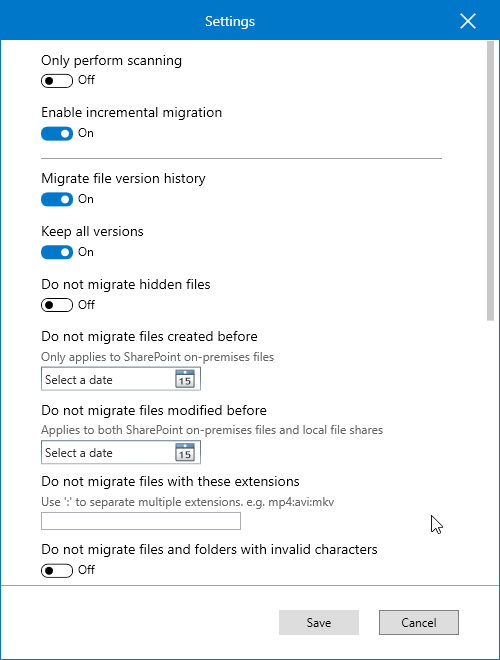
Once you have define your source(s) and target(s), and before starting the migration process, you can configure additional settings by clicking on the gear button available at the top right corner
The additional settings allow you to migrate file history (i.e. version) (default setting), migrate or not (default setting) hidden files, define a date range to migrate most recent content, exclude some file types and define the user mapping (default is using Azure Active Directory but you can define your mapping using a CSV file to map the user SID (source) with the user UPN (target) and the third column to define if this is a group (True) or not (False)


Migration
Once all the above steps have been completed you can then click to the Migrate button to start the migration process.

All reports are saved within the current Windows user profile, in the Roaming portion (C:\Users\<user>\AppData\Roaming\Microsoft\MigrationTool\<Office 365 logged user>\WF_686fca7f\Report)