

You may have already configured Azure RMS (Rights Management Service) integration with Outlook Web Access (or so called today Outlook on the Web).
You can now also enable the same integration with Azure Information Protection; even if you do not have yet enabled Azure RMS integration.
To do so you must:
- have an Office 365 subscription including Azure Rights Management
- or an Azure Information Protection subscription with an Office 365 subscription including Exchange Online
If you are using Exchange Online with Active Directory Rights Management (AD RMS) on-premises you can not use the new capabilities provided by Azure Information Protection.
Prerequisites
Before setting up Azure IP to work with Exchange Online OWA, you must have the following prerequisites installed:
- Windows PowerShell module for Azure Rights Management (http://go.microsoft.com/fwlink/?LinkId=257721)
- Microsoft Exchange Online Powershell Module if you are using MFA to authenticate against Office 365 services
Setting up Azure IP integration
If you already had Azure RMS integrated with OWA you go to the next steps ‘Azure IP Integration with OWA’
Getting Azure Information Protection settings
The following steps are not required if you already had configure Azure RMS integration with OWA
Do not forget to use the Microsoft Exchange Online Powershell Module if you are using MFA
- Open a PowerShell command prompt (preferably use the Run As Administrator option)
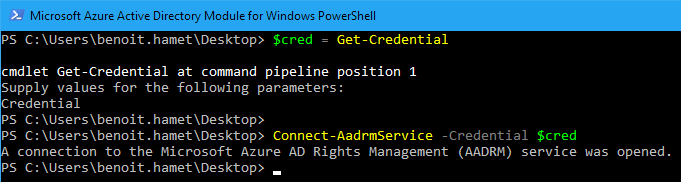
- Execute the following command to connect to your Azure RMS tenant
$cred = Get-Credential
Connect-AadrmService -Credential $cred
- Run the following command to enable Azure ADRMS
Enable-Aadrm

- Get the Azure AD RMS settings and save it to a variable and then disconnect
$rmsConfig = Get-AadrmConfiguration
$licenseUri = $rmsConfig.LicensingIntranetDistributionPointUrl
Disconnect-AadrmService

Azure IP Integration with OWA
- Connect to Exchange Online
Either with
$session = New-PSSession -ConfigurationName Microsoft.Exchange -ConnectionUri https://outlook.office365.com/powershell-liveid/ -Credential $cred -Authentication Basic -AllowRedirection
Import-PSSession $session
or
using the Exchange Module
Connect-EXOPSSession
- Get the IRM configuration from Office 365
$irmConfig = Get-IRMConfiguration
$list = $irmConfig.LicensingLocation
if (!$list) { $list = @() }
if (!$list.Contains($licenseUri)) { $list += $licenseUri }

- Apply the IRM configuration if required; NOTE only the command Set-IRMConfiguration -AzureRMSLicensingEnabled $true is required if you already had it configured with Azure RMS
Set-IRMConfiguration -LicensingLocation $list
Set-IRMConfiguration -AzureRMSLicensingEnabled $true -InternalLicensingEnabled $true (optionally you can also set the parameter -ExternalLicensingEnabled $true)

- Enable the Protect button in OWA
Set-IRMConfiguration -SimplifiedClientAccessEnabled $true

Checking and Testing the Configuration
You can then check the configuration by running the command
Get-IRMConfiguration
As result you must see values for the LicensingLocation, AzureRMSLicensingEnabled and InternalLicensingEnabled

To test the configuration, run the command
Test-IRMConfiguration –Sender <email address of a user enabled for Azure IP>
And you should get similar results with all tests passed

And the final result is done by logging on to Exchange Online Outlook Web Access and create a new email; you must have the Protect button available
NOTE if you previously had Azure RMS integrated with OWA, the options Set permissions is removed and the options to set the permission will be displayed after clicking on Protect

And when you click on Protect you will get the notification bar with Do not forward set and the option to change the permissions

