

Microsoft Teams has been updated to allow guest access with external users.
The guest access is working for anyone which has an Azure AD account (any other Azure AD or Office 365 tenants), no Microsoft account.
The Guest access for Teams is not enabled by default.
Managing Guest access
As usual Office 365 administrators can authorize or not guest access for Teams.
NOTE this does not prevent end-users inviting guests but prevent guests to sign-in; if you want to totally turn off guest access (impacting also SharePoint Online and Office 365 Groups), you will need to do it from the Settings\Security & privacy\Sharing
To block Teams guest access, logon to your Office 365 administration portal and reach the Settings\Services & add-ins section to open the Microsoft Teams options

Reach the Settings by user/license type option and switch from Business & enterprise to Guest and toggle to On (to enable guest access) or Off (to disable guest access)


As administrator you can also see the list of guests invited to join some services (SharePoint Online, Office 365 Groups or Teams) from the Users\Guest Users section

Adding Guest
To add a guest to a Teams, just use the Add members from the team/channel menu

Type the email address of the guest to be added and then click Add. Ensure you click on the purple message to add the user

Wait while the system is adding the guest access, until you get the result showing the guest has been added

Joining as Guest
Then the guest will receive a notification he has been added to a Microsoft Teams

And then he can access the by clicking the Open Microsoft Teams; this is a mandatory step to get the guest access added to his Microsoft Teams application
This open a web page explaining the sharing organization need to have access to some of the user information (display name, email address)
You can note the page is customized based on the Azure AD tenant customization.
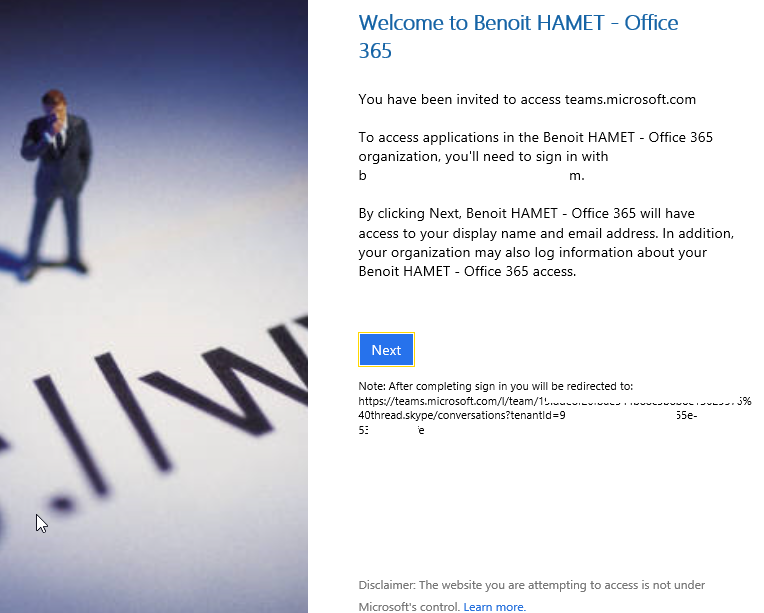
When clicking Next the Teams is preparing your access and then ask to launch either the web app or the Teams app if installed (if not you get the link to download it)


Once the invitation has been accepted a message is automatically added to the channel thread announcing a new guest member (as it does for internal users) AND a banner indicating the channel has guest as member is added

