

New feature is now available in public preview on Azure called Azure Network Watcher.
This feature will help you troubleshooting/validating network connectivity.
To start using it logon to your Azure portal (https://portal.azure.com) and search for Network Watcher

Then you can start using Network Watcher to troubleshoot/validate your network.
You can get the network topology, try TCP connection, do network capture…
Network Topology
To get the network topology of you deployment open the Topology blade

Then select the subscription, resource group and virtual network to get the associated network topology – quite interesting; just one thing missing, there is no ability to export to Visio (may be a good feature request)
Another thing is the name of each resource involved may be a little bit hard to read as it may overlap
This sample is very simple as this concerns only one Azure VM

IP Flow
To use this functionality, you need to have an Azure virtual machine up and running. This tests if your network rules/nsg are configured correctly
On the Network Watcher, open the IP flow verify blade and then select the subscription and resource group associated with the virtual machine you want to test; then you can select the VM (if you have multiple ones) and the network interface

Then the Local IP address is automatically filled with the value of the local IP address associated with the network interface
You then define the protocol (TCP or UDP), the direction (inbound or outbound), local port (to be used if you try inbound) and the remote IP and port to test connectivity with

And then you got the result: success or failed
For this post I tried to connect outbound to remote website; all the results were successful , even if the remote communication port is closed on the remote server – not sure if this is some sort of bug or not, I was expecting to get a failed result telling me the VM is able to try to connect using Telnet port but the remote host denied it.
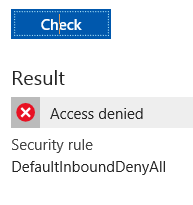
On the other side, trying an inbound connection I got the expected result as there is no rule to allow inbound connections, except remote desktop
You can check which rule has been applied to get the result


Next Hop
If you need to check the network route being used to access a remote host from your VM, just open the Next Hop blade
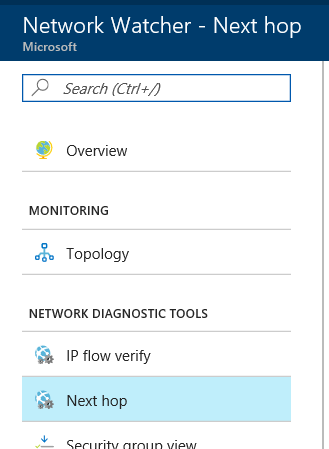
As for the previous test, you then have to select the subscription, resource group and VM and enter the remote host

Security Group View
This blade is listing all NSG applicable to a VM; you can then download it in a CSV file

VPN Diagnostics
This blade is quite self explanatory; if you have connectivity issues while trying to access your Azure VPN through VPN (site to site or point to site), this is where you need to go.
As I do not have the configuration in place, I’m not able to provide you additional details.
Packet Capture
Network limits
You can view the network subscription limit defined for a subscription and region and the corresponding current usage; this can be quite helpful to understand/troubleshoot why you getting trouble to create/configure new network resources

NSG flow logs and Diagnostic Logs
And finally you can get the log files related to NSG or diagnostic to help you analyze it offline; you can also see if these log functionalities are enabled or not
If not you will get the appropriate link to enable it


