

In the continuity of my posts about Azure Backup Server, this one is related to setting Azure Backup reports (in preview currently).
Azure Backup Reports will help you to aggregate backup reporting from different backup vault if you use the same storage account to give a global insights for your backup saved in Azure.
Configure Azure Backup Reports
To configure Azure Backup Reports, connect to your Azure portal (https://portal.azure.com) and go to the Recovery Services Vaults section and select the vault you want to configure for reporting.
Then access the Monitoring and reports\Backup Reports section

As first step you need to configure the storage account to be used to store gathered data related to the backups
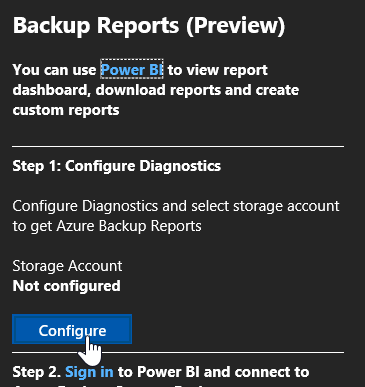
When starting to configure the storage account you may got a blade related to Diagnostic settings; you are getting this blade because your settings have turn off the diagnostic function, you need to turn it on

Then you will be able to configure the storage account; you can choose to save the data reports to a storage account (these steps), push to an event hub or send it to a log analytics (such as OMS).
The storage must already exist; if you have multiple subscriptions you may have to switch them to find the one you want to use


For this post I choose to use both a storage account and to send to my OMS workspace
Then you can define a retention policy for the logs being generated; this applies only to the storage account

Then you have to wait 24 hours to get the data gathered.
https://docs.microsoft.com/en-us/azure/backup/backup-azure-configure-reports
Connect Power BI to consume the reports
Re connect to the Azure portal and return the Monitoring and reports\Backup Reports section to sign in to Power BI

You can also connect directly to Power BI but you will have to connect again anyway to Azure portal
Once logged on to Power BI choose use a Microsoft AppSource by selecting Services

Search for Azure Backup

Then you need to define the storage account and the authentication method; the authentication method will be Key – you then need to gather the storage access key for the storage account from the portal

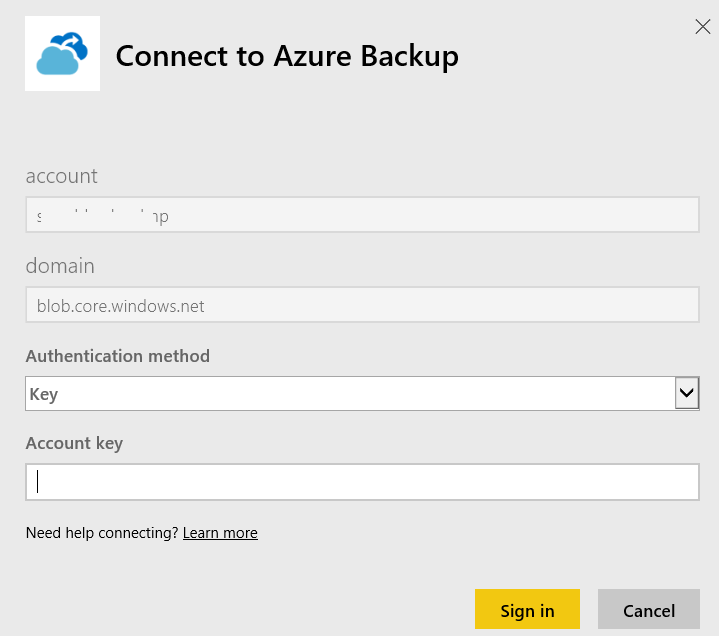

Once completed, you can sign-in
And here you are, you have your Azure Backup reports in Power BI, you just to wait sometime to get the data gathered.