

To perform the following steps you must first have installed and configure Microsoft Azure Backup Server (MABS); you can check http://blog.hametbenoit.info/2017/07/03/azure-install-and-configuration-of-azure-backup-server/ to do so
Define a protection group for Exchange server
- The MABS agent must have been deployed first on all Exchange servers
- Once the agent has been deployed you can create the protection group to backup your Exchange servers using the Azure Backup Server console, in the Protection section

- Click the New button and follow the wizard to add your Exchange server(s); as first step you need to select the Servers option

- All servers with the agent installed will be automatically listed; you will need to open the Exchange server(s) to select the Exchange databases to backup – as soon as you have installed the MABS agent to the server, the associated workload is automatically detected (SQL, Exchange, SharePoint) NOTE SharePoint 2016 is not yet supported

- Then you need to define where you want to save the backup – either on a local drive (or tape if you have a tape drive) or to Azure (see this post to associate local storage to MBAS http://blog.hametbenoit.info/2017/07/04/azure-add-local-storage-to-azure-backup-server/)

- For the purpose of this post, I’m backing up to both local disk and cloud locations. NOTE you will be able to define which database(s) will be backup to the cloud
- Optionally (but highly recommended
 ), you can define if you want to run eseutil to validate the data integrity. When you enable this option you have then to choose if you run to the database AND log files or to the log files only. I’m not going to explain which one if better as Microsoft did a good job to explain which option to choose depending of your configuration. As I do not have a DAB I’m selecting the first one
NOTE if you have to run eseutil from the Azure Backup Server, you need to have installed the Exchange management tools (in order to get eseutil installed on the server)
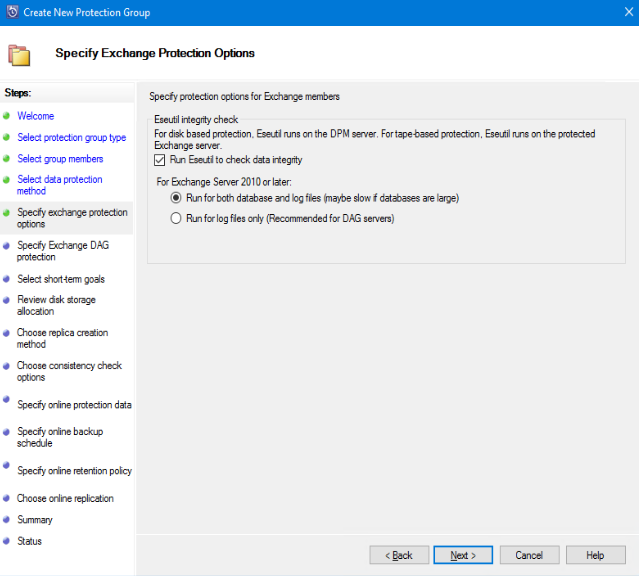
If you do not have eseutil installed, you will ended with this error
Eseutil consistency check cannot be performed for this protection group, as eseutil.exe is not present on the DPM server.
Copy the following files from the Exchange Server installation folder to "C:\Program Files\Microsoft Azure Backup Server\DPM\DPM\bin\" on the DPM server:
Ese.dll
Eseutil.exeYou can also choose not to run Eseutil consistency check for this protection group, by not selecting the "Run Eseutil Consistency check" option. However, this is not recommended because it will not ensure the recoverability of the protected data.
ID: 182

- Then you have to select which database will be used for the full backup; this is important if you have a DAG configured as only one copy must be backup

- Then you define the short term recovery, which means if you have to recover an item within the defined period you will use the local disk copy instead of the cloud/tape one

- Then, because I choose to have a local copy of the backup, the wizard is checking the required storage and validate if you have enough storage available associated with the Azure Backup Server


- Then you have to define how and when the server will generates a replica; I would recommend to either schedule the replica creation outside of the business hours when using the network or if you network is not capable to support the traffic to use a removable media

- At the next step, you need to define when to run the data consistency against the replica

- The final steps are now related to the cloud backup options; you can define which database(s) will be saved to the cloud. Can be important if you want to keep sensitive mailboxes backup on premises only

- The next step