

Once you have installed and configured Microsoft Azure Backup Server (MBAS) and started to define protection groups to perform backups and save it to the cloud, you will need to add the Azure Recovery Vault used to save the backups to your MABS console.
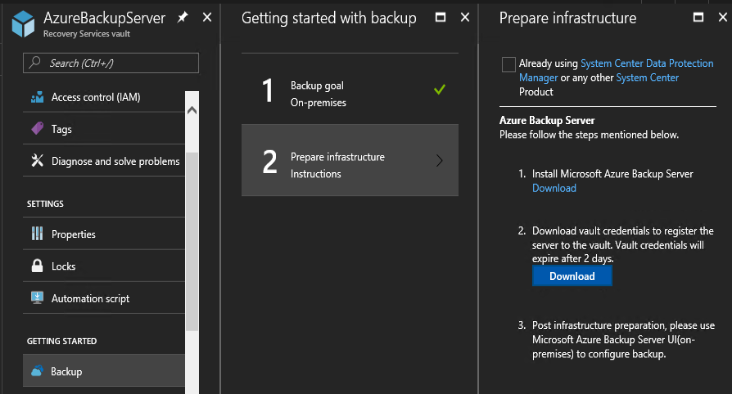
- First you need to re download the credentials file as the one you used to configure MABS may have expired; from the Azure Portal (https://portal.azure.com) access your Recovery Vault and go to the Getting Started\Backup section to define (again) the goal (backup on premises) and then being able to download the vault credentials
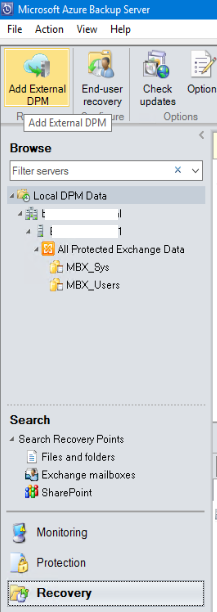
- Then open your Azure Backup Server console and go to the Recovery section to add an external DPM (as this is what is your Azure Recovery Vault)
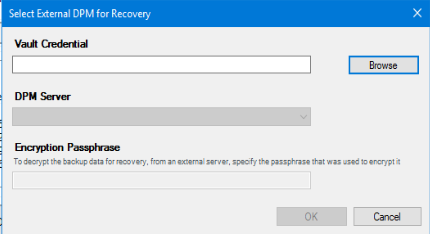
- When clicking to the Add External DPM you will be asked to select the vault credential; just browse to the location you have saved the credentials file downloaded earlier and enter the passphrase you have defined when creating the Azure Recovery Vault
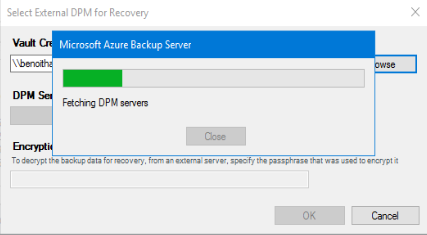
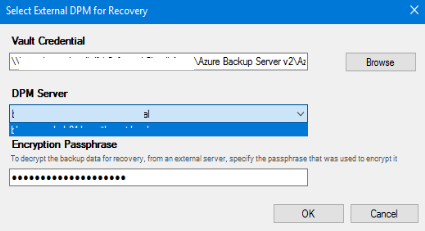
- Then the Azure Recovery Vault is being added to the console
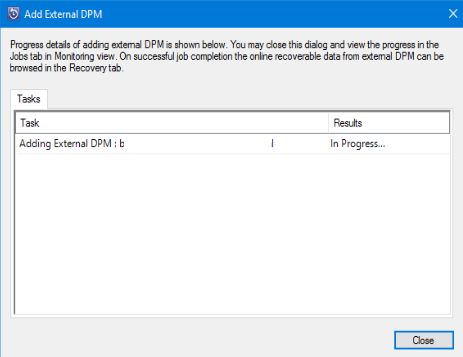
- Once added, you can browse the Azure Recovery Vault to perform a recovery using your Azure Recovery Vault
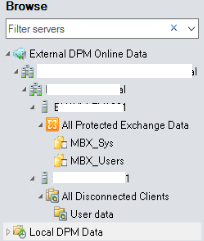
NOTE you will have to repeat these steps each time; it appears that the console does not save the Azure Recovery Vault