

The evolution of Office 365 features continues with the ability to give guest access to Office 365 Groups.
With this update, you can now grant access to Office 365 Groups to people which are external to your organization.
Adding guest to an Office 365 Groups can only be done by either an Office 365 Administrator or the group owner(s).
The following table list what a guest can do within an Office 365 Groups
| Feature | Guest Allowed to |
| Create a group | No |
| Add/remove members | No |
| Delete a group | No |
| Join a group | Only by invitation |
| Start a conversation | Yes |
| Reply to a conversation | Yes |
| Search for a conversation | Yes |
| Mention a person in the group (@person) | No |
| Pin or favorite a group | No |
| Delete a conversation | Yest |
| Like a message | No |
| Manage meetings | No |
| View group calendar | No |
| Modify calendar | No |
| View or edit group files | Yes, if authorized |
| Access the group OneNote | Yes, using a direct link |
| Browse for groups | No |
| View RMS protected message | No |
Keep in mind this feature does not allow you to add person from your organization as guest into a group.
Control guest access to Office 365 Groups
An Office 365 Administrator must first manage the guest access using Azure AD PowerShell.
Also, before being able to grant guest access you must also enable guest invitation on your Azure AD
Enable guest access on your Azure AD
- Logon to your Azure AD management portal
- Access your Azure AD directory and go to the Configure section

- Then locate the User Access section and enable the Allow invitation and Limit Guest Access
- Allow invitation enabled the guest access – turn ON by default
- Limit Guest Access restricts access to the directory; if turned off guest will have same access level than a normal user

Enable guest access for Office 365 Groups
- Using Azure AD PowerShell (http://go.microsoft.com/fwlink/p/?LinkId=827116) connect to your Azure AD tenant – you must have the Version 1.1.167.0; it not, you will have an error Get-MsolSettingTemplate : The term ‘Get-MsolSettingTemplate’ is not recognized (see later in this post how to get it)
$cred = Get-Credential
Connect-MsolService -Credential $cred
- Get the Office 365 Groups template
$template= Get-MsolSettingTemplate -TemplateId 62375ab9-6b52-47ed-826b-58e47e0e304b
- Get the settings template
$setting = $template.CreateSettingsObject()
- Get the current settings
$new_setting = New-MsolSettings -SettingsObject $setting
The following command returns the current settings for the Office 365 Groups template; if AllowGuestsToAccessGroups is not set to True then continue
$new_setting.Values

- Enable the guest access for Office 365 groups
$new_setting | Select-Object -Property *
Use the ObjectID returned by the previous command
$setting = Get-MsolSettings -SettingId b3f01d8c-c095-4be4-854c-9938a9951389
$value = $setting.GetSettingsValue()
$value["AllowGuestsToAccessGroups"] = "True" – do not forget the double quoteSet-MsolSettings -SettingId b3f01d8c-c095-4be4-854c-9938a9951389 -SettingsValue $value


Invite guest to an Office 365 Groups
Once the configuration is done, a group owner can then invite a guest to access the Office 365 Group
Using OWA
The group owner logs on to OWA (https://outlook.office365.co
m/owa/) and access the People section to get his Office 365 Groups list
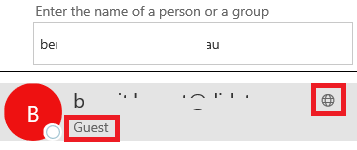
Click the Add members, click on the Guest section and add the email address of the external user

The external user is shown with the subtitle Guest and a world icon is shown near the email address
Using Office 365 Groups mobile app
You can also use your Office 365 Groups mobile app to add guest.
Exact same process
Getting the correct version of Azure AD PowerShell modules
Getting the correct version of the Azure AD PowerShell modules is not straight forward.
You first need to download the latest GA version (1.1.160.0) available on Connect http://go.microsoft.com/fwlink/p/?LinkId=827116

Then launch the Microsoft Azure Active Directory Module for Windows PowerShell using run as administrator
Download and install the latest public preview version using the command Install-Module -Name AzureADPreview
You will need to confirm you want to download and install NuGet Provider and then confirm the installation of the preview
