As you know, after provisioning a virtual machine you had to manually connect to your Azure Log Analytics workspace to deploy the Monitoring Agent on the VM and then get reporting to Azure Security Center.
Well, now you can totally forget to do such thing as you will be able to get any new virtual machine automatically connected to your workspace by using the Auto provisioning option available in the Security Center.
To enable this option, go to your Azure portal (https://portal.azure.com) and reach out the Security Center blade.

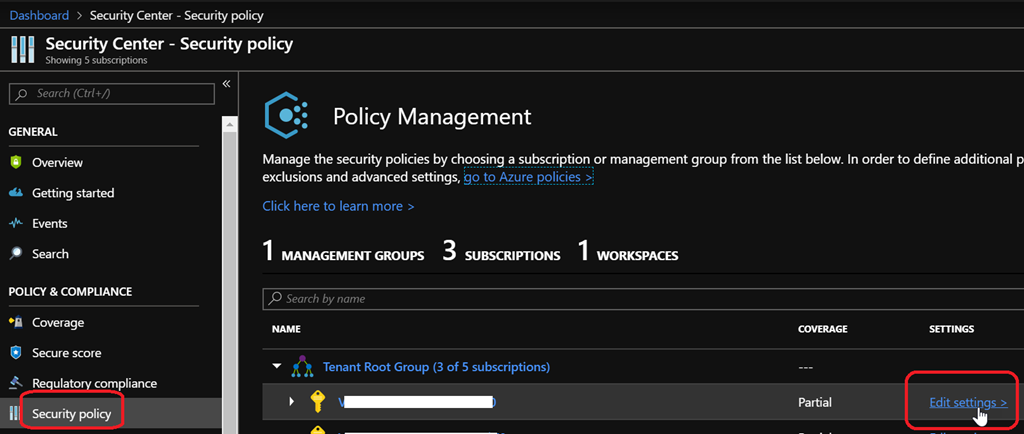
From there go to the Policy & Compliance\Security policy blade to edit the settings to your subscription (if you have multiple subscriptions you have to do it for each one)
Then at the Data Collection blade, turn on the Auto provisioning option. Once turned on you can then define the workspace to connect to
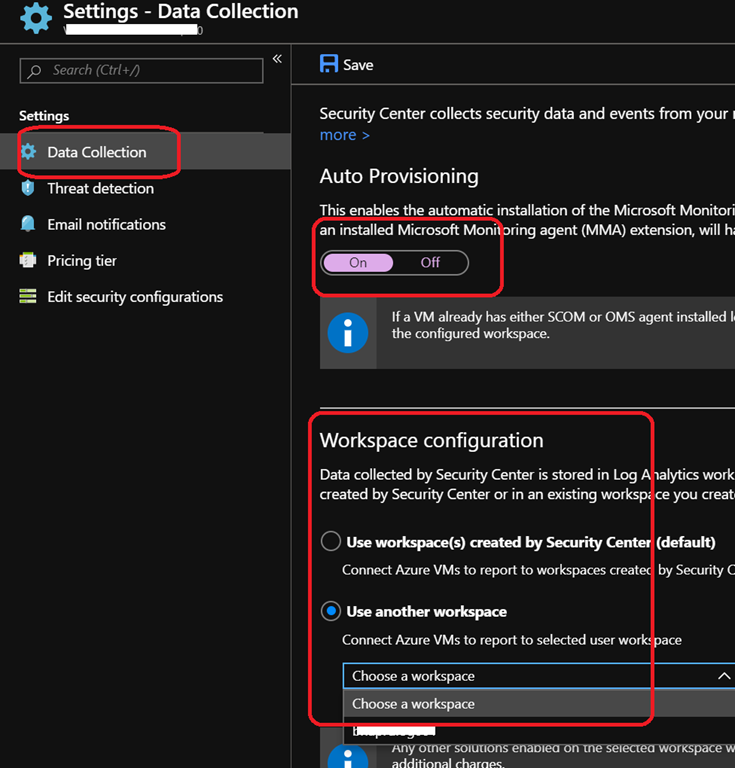
You may have a prompt to reconfigure already monitored VM’s to use the define workspace

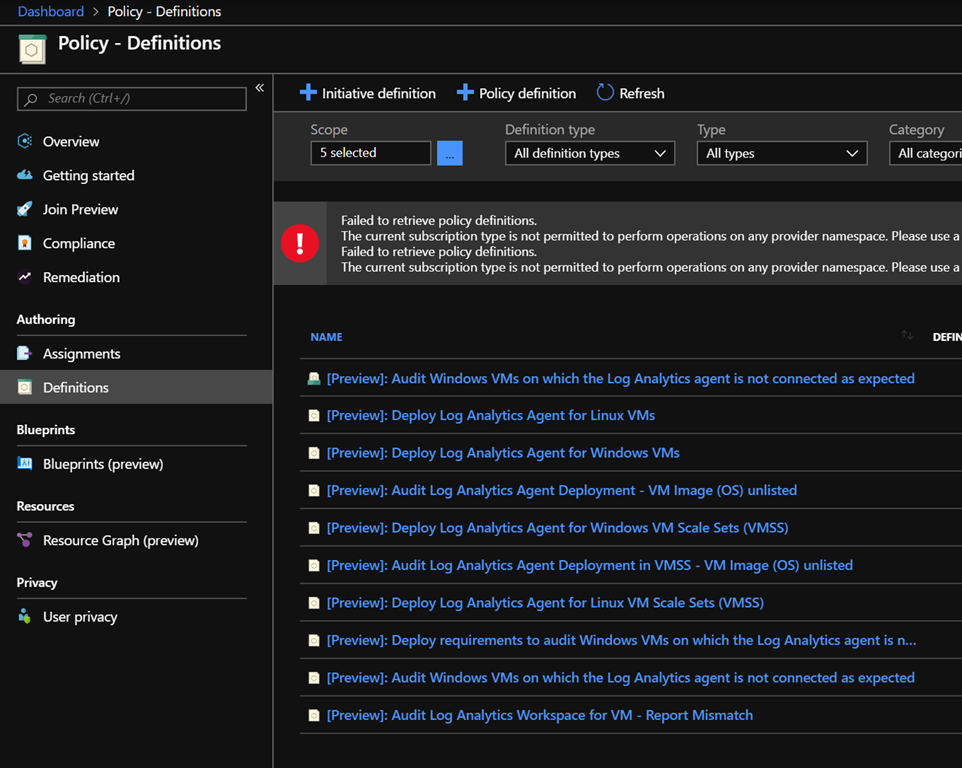
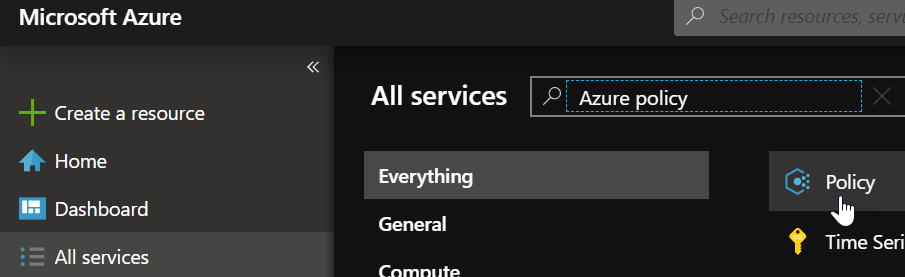
In addition (or as different option to do such thing), you can also use the below Azure Policies. You can configure the policies by searching for Azure Policy and then go to the Definitions blade
- {Preview]: Enable Monitoring in Azure Security Center
- [Preview]: Deploy Log Analytics Agent for Linux VMs
- [Preview]: Deploy Log Analytics Agent for Windows VMs
- [Preview]: Audit Log Analytics Agent Deployment – VM Image (OS) unlisted
- [Preview]: Deploy Log Analytics Agent for Windows VM Scale Sets (VMSS)
- [Preview]: Audit Log Analytics Agent Deployment in VMSS – VM Image (OS) unlisted
- [Preview]: Deploy Log Analytics Agent for Linux VM Scale Sets (VMSS)