

As you may know, Microsoft has announced a new Windows Server management experience to manage on-premises system with the Honolulu project.
The Honolulu project delivers a more modern interface for managing on-premises system through a web interface with no cloud footprint (no dependency what so ever with Azure or other clouds services).
In this post I will go through the setup of the technical preview – available for download at https://aka.ms/HonoluluDownload
You can provide feedbacks here http://aka.ms/honolulufeedback
First to install Honolulu you need to use either Windows 10 (with some limitation) or Windows Server 2016 (core or with UI). Windows Server 2012 versions can be managed by Honolulu but you can not use it to host the management system.
Then download the MSI package from the URL provided above and install it.


During the setup you will define the communication port to use – default is 6515 – and the certificate to use (as this is a web service, you can generate your own certificate). For this post I have requested a certificate defining the URL I will then use to connect to the web interface (I also have created a DNS record to point to the server).
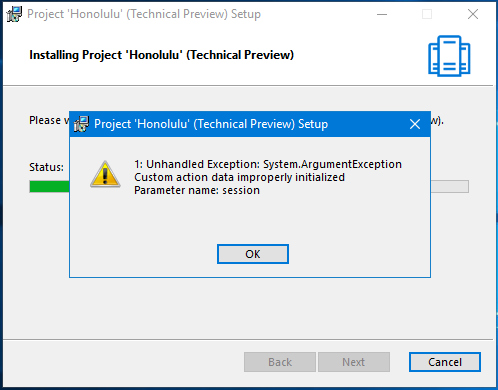
NOTE it is recommended to use an elevated command prompt to install, otherwise you will get the following error
1: Unhandled Exception: System.ArgumentException Custom action data improperly initialized
Parameter name: session
I use the PowerShell command Get-ChildItem -path cert:\LocalMachine\My to get the certificate thumbprint and define the communication port to 443



Once installed you can check if the service (Project ‘Honolulu’ (Technical Preview))has been started

Then you can connect to the web interface.
NOTE please use either Edge or Chrome. IE is not supported as of now – wtf??? I got this by accessing using HTTPS://localhost instead of the URL defined in the certificate as I was getting a white page

The first time you will be welcome with a welcome tour

IMPORTANT there is no authentication request; meaning this uses Windows credentials to access the portal BUT there is no restriction to access it, everybody can access the portal and view all servers managed with Honolulu (off course you will not be able to perform anything if you don’t have permission)

Once you define your admin credentials you can do more and access the server(s) details and manage it from the web interface (from starting WindowsUpdate to killing processes or setting registry keys)


To add another server, just click the Add button and enter the server details to add to the interface; you can use text file which contains all the servers you want to add, either separated by a comma or one server per line

