

A new security feature has been made available in preview on Azure: Just In Time Access for virtual machine.
While access and behavior of resources hosted on Azure are monitored by Microsoft to avoid malicious activities, there is still risks to get your resources, and in this case your virtual machines, being vulnerable.
The Just In Time VM Access functionality will help you to better protect your virtual machine hosted on Azure by locking down remote access.
Activating Just In Time Access
To take advantage of the Just In Time Access for your virtual machines, logon to your Azure portal (https://portal.azure.com/) and access the Security Center

Then in the General section click on Enable Just In Time VM Access

And finally Try Just In Time VM Access and select the subscription to use for the preview/evaluation and upgrade to the Standard tier

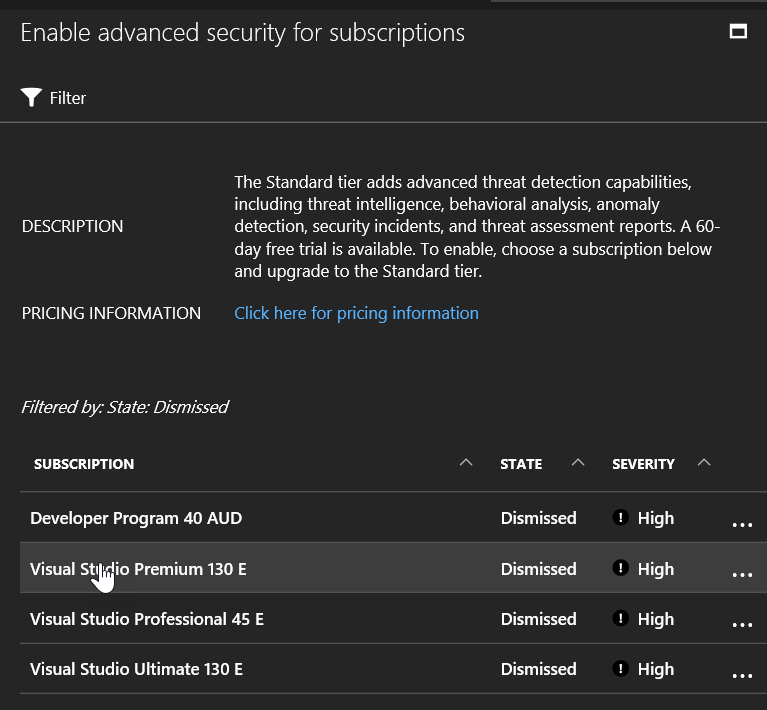

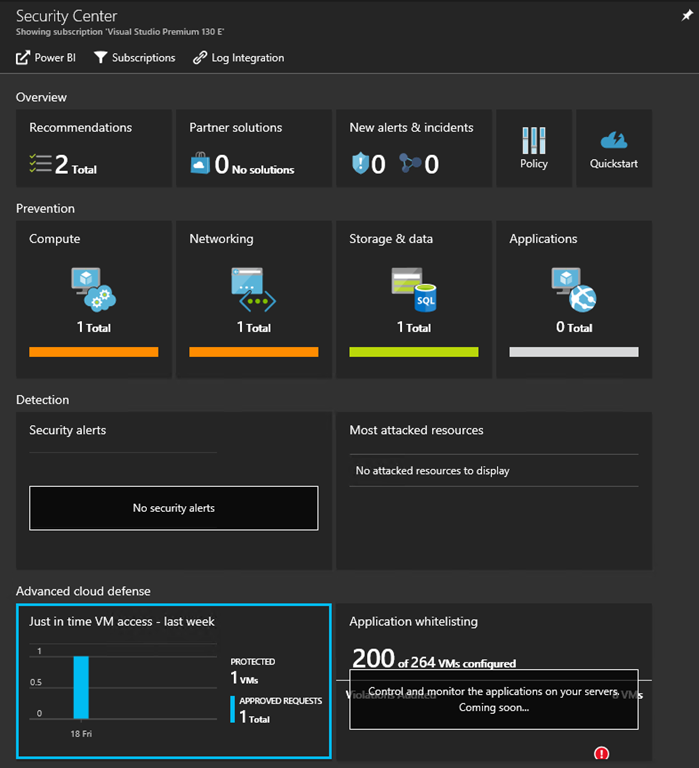
Once upgraded, the Just In Time VM Access section on the Security Center will show all virtual machine protected by JIT Access.
As you just enabled it, there will be no virtual machine protected yet
To protect virtual machine, just open the JIT blade to get the complete list of protected virtual machine and virtual machine which would need protection

Select the virtual machine(s) you want to enable for JIT Access

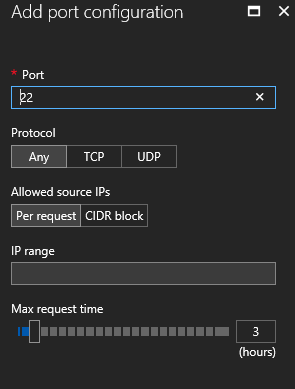
When activating the JIT Access, you have to define to which port the functionality will apply; in case of you are using other ports to manage the VM and to not ‘block’ legitimate access (like when hosting a web server); there is already a list of predefined known management ports

When defining the management port (or editing the default ones) you can define from where and for how long the JIT Access will be granted – default is set to 3 hours from anywhere
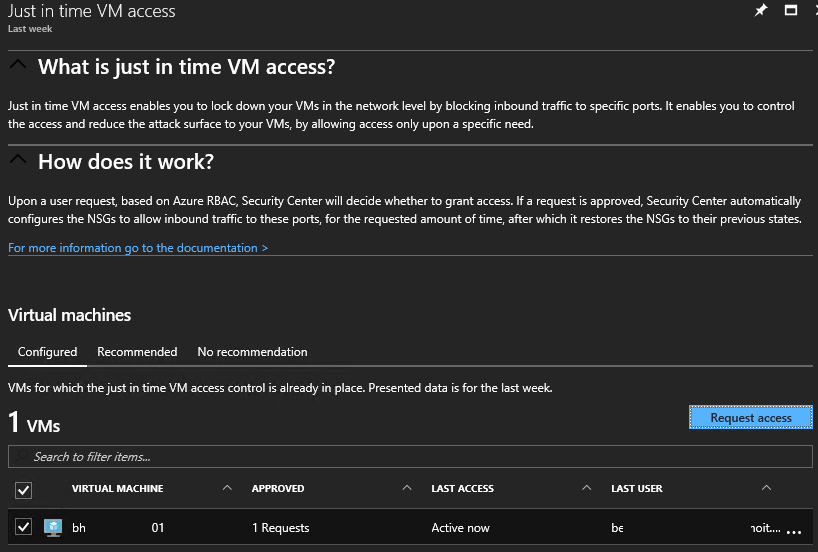
Once activated, the JIT Access blade will be refreshed showing the protected VM’s, with details regarding the number of requests including last user logged

NOTE you will also get the JIT access activation recommendation when you go to the virtual machine Advisor Recommendations

Accessing the virtual machine with JIT enabled
After activating JIT Access on a virtual machine, you will not be able to logon anymore using the defined management port without requesting access first

To request access you need to go the Security Center\Just In Time VM Access and select the virtual machine you want to access and request access

Then you need to tell which management port you are going to use and for how long – NOTE you can request only for the maximum amount of time define in the policy
To select the communication port just toggle the on/off button on the right side and click Open port
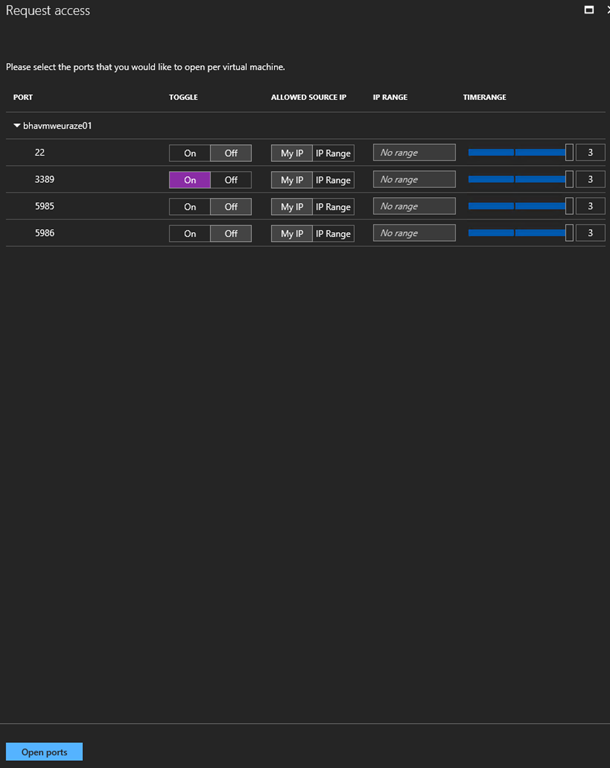
Then the Azure Security Center will automatically allow/deny your request
Edit / remove JIT policy
To edit or remove JIT VM Access policy, just open the contextual menu for the virtual machine you want to edit

