A new scheduling assistant is coming to you; apparently this may replace the Outlook add-in ‘Find Time’. This is using Cortana.
Setup
This new scheduling assistant is currently in preview; so first thing you have to do is to connect to https://calendar.help/ and request an invitation

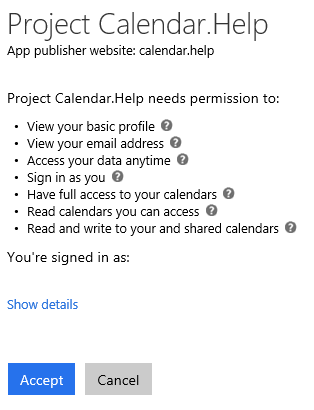
You will need to grant the permission to the app to access your mailbox
Then you have to wait to receive the invitation

Once you got the invitation, continue the setup and sign-in with the same account you used to register
Then you have to answer few questions; like confirming your name, default ‘working’ hours – the period when Cortana will do the job for you, the meeting length and your time zone


You will also have a quick demo on how to use it

And you are all set..

Use it
To use the new scheduling assistant, just send an email to your participant and add (in CC) Cortana using cortana@calendar.help
NOTE if you click the Try it out button, this will generate an automatic email being sent to Andres Monroy-Hernandez (@calendar.help – so Microsoft) to schedule a phone call; unless you want to do it, no need to click on this button 
Anyway for the purpose of this post, I’m scheduling a meeting with my own professional account, a test mailbox (both not hosted on Office 365) and another test mailbox hosted on Office 365.
Cortana then should identify my availability and propose some times
So it first I got my email (remember you do not have to use the request meeting message) on my recipients mailboxes and in the meantime got an email from Cortana telling me she is looking for availability

As you can see in the email, I can go back to the web site to check the status of this request (direct URL is https://calendar.help/user/status)


From this link, you will be able to see requests which have been already scheduled
While waiting for your first request to be proceed, you can check your settings to adjust/update few things, like a phone number to reach you or your conference call phone number

Once Cortana has found availability in your calendar, the status of your request is gong to Waiting for response

And the recipients receive the propositions

So just reply with your preferred time

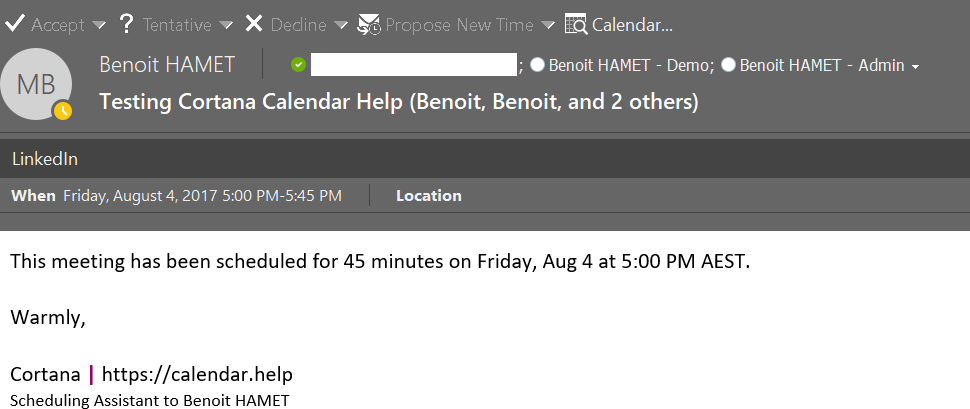
And there you go, the meeting has been scheduled – the meeting length is the one you have set earlier (see the Settings)

And you, as organizer, got this email to confirm the meeting has been setup, while your sent items has the sent request meeting and your calendar the meeting