

Azure AD Connect Health is a new feature available on Microsoft Azure for Azure Active Directory.
This new functionality requires you have an Azure Active Directory Premium and allows you to monitor your identity platforms. This is currently in preview.
This will help you to be proactive before potential issues impact your end-users, gather statistics related to the authentication process, monitor your Azure Active Directory and federation systems….
Activating Azure AD Connect Health
Using an Azure Administrator, connect to the Azure management portal preview using https://portal.azure.com
If you are using the “old” administration portal, switch the new Azure portal using the user contextual menu
IMPORTANT the application is not available through the current Marketplace

Then open the Marketplace – this is not (yet?) available directly through the portal at the directory level

Locate the Azure Active Directory Connect Health application and click Create


If you don’t have yet enabled Azure Active Directory Premium you will be asked for it; if you activate it at that time, it may take some time to get it detected by the application and allow you to proceed AND you must have a Premium license assigned to the account which is currently activating the service
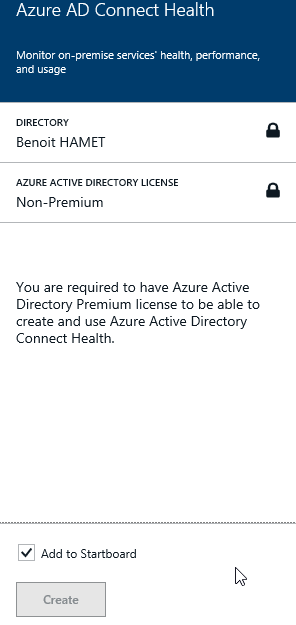

Then once the Azure AD Connect Health has been enabled, you have to download and install a connector on ALL of your ADFS (2.x, 3.x) / ADFS Proxy (2.x) / WAP (ADFS 3.x) servers using the link provided from the portal or using the link http://go.microsoft.com/fwlink/?LinkID=518973
The link to get the agent is available from the Connect Health icon shown in the dashboard, then click on Quick Start and Get tools


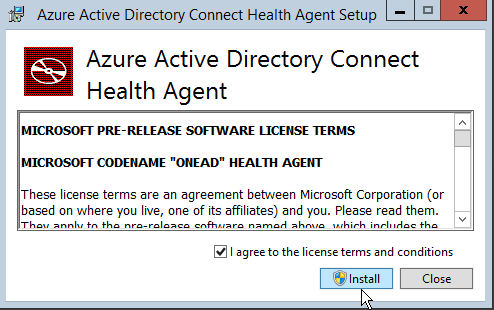


Then open a PowerShell command line (always use the run as administrator) to register the local agent installed with the portal and run the command Register-ADHealthAgent
You will be asked to authenticate with your global administrator account – the good thing is if you are using MFA (Multi Factor Authentication) it should work – in my case I’m using MFA installed on-premises and integrated with ADFS 3


That’s it  , the service is activated.
Check the local services to ensure they are started:
- Microsoft AD Health Diagnostics Agent
- Microsoft AD Health Insights Service
- Microsoft AD Health Monitoring Service
Health Analysis / Report
Still from the new/preview portal (https://portal.azure.com/) you should see Connect Health in the dashboard

Click on it and you will see the federation services discovered, the agent status, service health….


If you see 0 ADFS services discovered, this may be because the agent services are not started
If you click on Agent Auto Update you will be able to enable/disable the auto update status for the agent as well as allow/disallow Microsoft to gather details for troubleshooting purpose
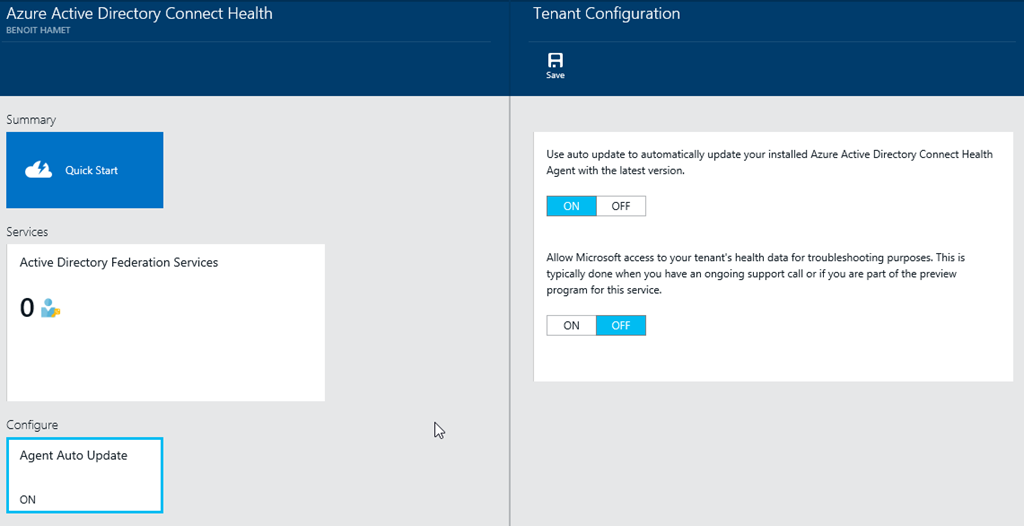
If you click on Active Directory Federation Services (if you don’t have any 0), you will see an overview of your ADFS infrastructure, update level of each server (if any update is missing on one or more servers), request statistics….
If you made any change, don’t forget to Save it
Troubleshooting
ADFS Audit Warnings when activating the local agent
If you get the following error messages during the activation of the local agent with PowerShell, the agent will not be registered correctly and will not report anything to the service.

WARNING: AD FS auditing is not enabled correctly, please verify AD FS configuration and Machine Audit security policy
To solve it:
- Open the ADFS console and go to the Federation Service Properties to enable the Success and Failure audit

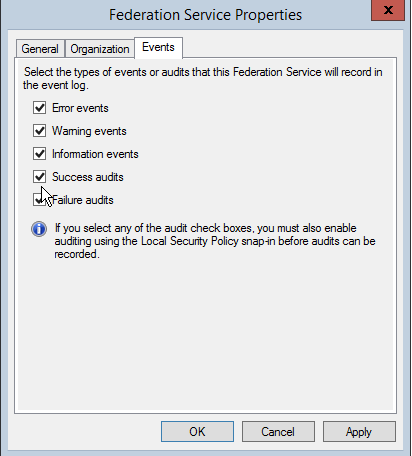
- Grant the ADFS service account the Generate security audits right (located below Windows Settings\Local Policies\User Rights Assignment)
- Run the command auditpol.exe /set /subcategory:"Application Generated" /failure:enable /success:enable
Install on Windows Server 2008 R2
If you are using ADFS 2.x installed on Windows Server 2008 R2, you must install Windows PowerShell 4.0 before installing the agent (Microsoft .Net Framework 4.0 http://www.microsoft.com/en-us/download/details.aspx?id=40779 and Windows Management Framework 4.0 http://www.microsoft.com/en-us/download/details.aspx?id=40855)