

UPDATED: July, 19th – troubleshooting steps
SECOND UPDATE: July, 27th – new required feature
With the coming new SharePoint version, called SharePoint 2013, Microsoft has changed the WAC (Office Web Application) architecture.
Now, WAC has to be deployed on dedicated server(s).
The reason for this architecture change is WAC can now be used by other service than SharePoint, such as Exchange 2013 (preview or modification through OWA) or Lync 2013 (this is indeed a requirements for Lync when you broadcast PowerPoint presentation).
On this post, I’ll explain how to deploy and configure WAC services.
Prerequisite
- SharePoint 2013 (off course
 )
) - WAC 2013 must be deployed
Deployment
I’ll not go deeper on the SharePoint deployment itself as this is pretty much the same than SharePoint 2010.
The setup process is pretty simple: just run the WAC setup program to deploy binaries. The prerequisites to deploy WAC are:
- Software requirements:
- .Net Framework 4.0 (http://go.microsoft.com/fwlink/p/?LinkId=236953). Do not install the client profile version.
- KB 259225 (http://go.microsoft.com/fwlink/p/?LinkId=236954)
- PowerShell 3.0 (http://go.microsoft.com/fwlink/p/?LinkID=244693)
- IIS Role:
- Default role service
- ASP.Net, .Net Extensibility, ISAPI extensions, ISAPI filters, Server Side Include
- Ink Feature
- Certificate requirements:
- If you plan to use HTTPS communication between WAC and SharePoint servers.
- The certificate must come from a trusted Certificate Authority and include the fully qualified domain name (FQDN) of your Office Web Apps Server farm in the SAN (Subject Alternative Name) field. (If the FQDN is not in the SAN, when you try to use the certificate, the browser will show security warnings or won’t process the response.)
- You must import the certificate directly on the server that runs Office Web Apps Server. Don’t bind the certificate manually; the New-OfficeWebAppsFarm cmdlet will do this for you. If you bind the certificate manually, it will be deleted each time the server restarts.
- The certificate must have an exportable private key. This option is selected by default when you use the Internet Information Services (IIS) Manager snap-in to import the certificate.
- The Friendly name field must be unique within the Trusted Root Certificate Authorities store. If you have multiple certificates that share a Friendly Name field, the command will fail because the New-OfficeWebAppsFarm cmdlets will not know which of those certificates to use.
- The certificate must be imported on the load balancer itself. (in case of multiple WAC servers used)
- The certificate must be bound to the default port 443, which is the port that Internet Information Services uses for HTTPS traffic. Do not bind the certificate to any other port.
- Firewall configuration:
- Port 443 for HTTPS traffic
- Port 80 for HTTP traffic
- Ports 809 and 810 for private traffic between the Office Web Apps Servers (if you’re setting up a multi-machine farm)
WAC configuration
This section covers single server farm configuration.
Once the binaries have been installed, open a PowerShell command prompt (run as administrator) and import Office cmdlet’s.
Import-Module OfficeWebApps
Then you can create your WAC farm
New-OfficeWebAppsFarm -InternalUrl "https://server.contoso.com" -ExternalUrl "https://server.contoso.com" –SSLOffloaded –allowhttp
Type HTTP if you want to use HTTP traffic instead of HTTPS; in case of HTTP use, don’t forget the –allowhttp parameter.
https://server.contoso.com/hosting/discovery ; if configuration is correct, you must have an XML result
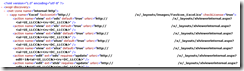
Then, from the SharePoint server, run the following command (using SharePoint Management Shell)
New-SPWOPIBinding -ServerName <WacServerName>
where wacservername has to be replaced by your WAC server, or the WAC farm name.
To finalize the configuration, ensure you have the following service et service application running:
- SharePoint Translation Services
- Word Automation Services
Troubleshooting
Office Web Apps failed to start
If the service Office Web Apps failed to start, this may be due to a previous Office Web Apps install.
So, open registry editor and go to HKLM\SYSTEM\CurrentControlSet\services\eventlog and delete the sub key Microsoft Office Web Companions.
Failed to bind SharePoint server with WAC server
When running the CMDlet to bind SharePoint server to WAC, you get an error message server is not responding, re run the CMDlet et add the –allowhttp parameter
Office document still don’t open on browser
If you can see a preview of Office Document (or open it using WAC), this means you have a configuration issue. To solve it, check the following:
The SPWOPIZONE must match the SPWOPIBINDING; ie if HTTP is used, HTTP must be set for both parameter.
To check this, run the following command using SharePoint Management Shell
- get-spwopizone
- get-spwopibinding
and check if both WOPIZONE settings are identical (such as internal-http or external-http)
