If you use Microsoft Entra ID, you most likely already know you can also use it for external identities management, and I’m not talking about guest account in your M365 tenant for collaboration.
This feature, used to be called B2C (business to consumer) tenant, now called External Identities tenant is used to use a dedicated Entra ID tenant for external users to access your custom application(s) using Entra ID for authentication.
As you know most of the time authenticating to an application uses a username and password (plus hopefully a multi-factor), where the username is mostly an email address.
Well, good news as now you can use a custom username which is not an email address, such as fidelity card number, customer ID or account number, when authenticating against Entra ID External Identities when connecting an application.
This can help reduce the number of accounts based attack by not using email addresses (which are relatively easy to get) associated with brute-force attack for password.
This does not remove the best practices to also implement a multi-factor authentication  .
.
You will still need to provide an email address to send the notification to the user.
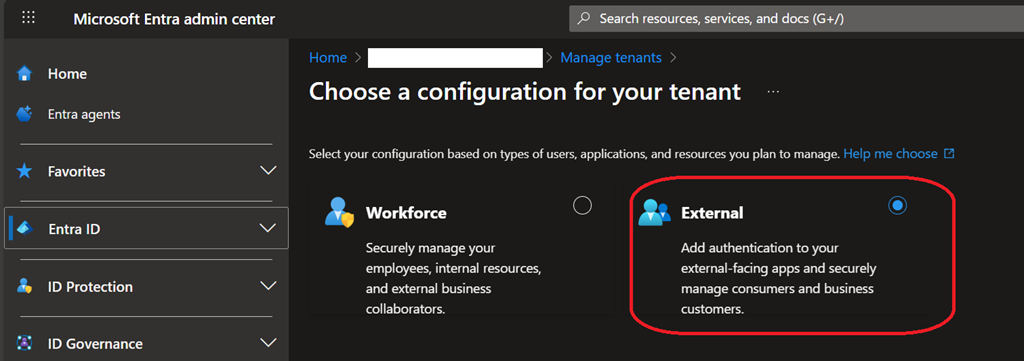
To do so, you need to use an external tenant type.
 ;
;
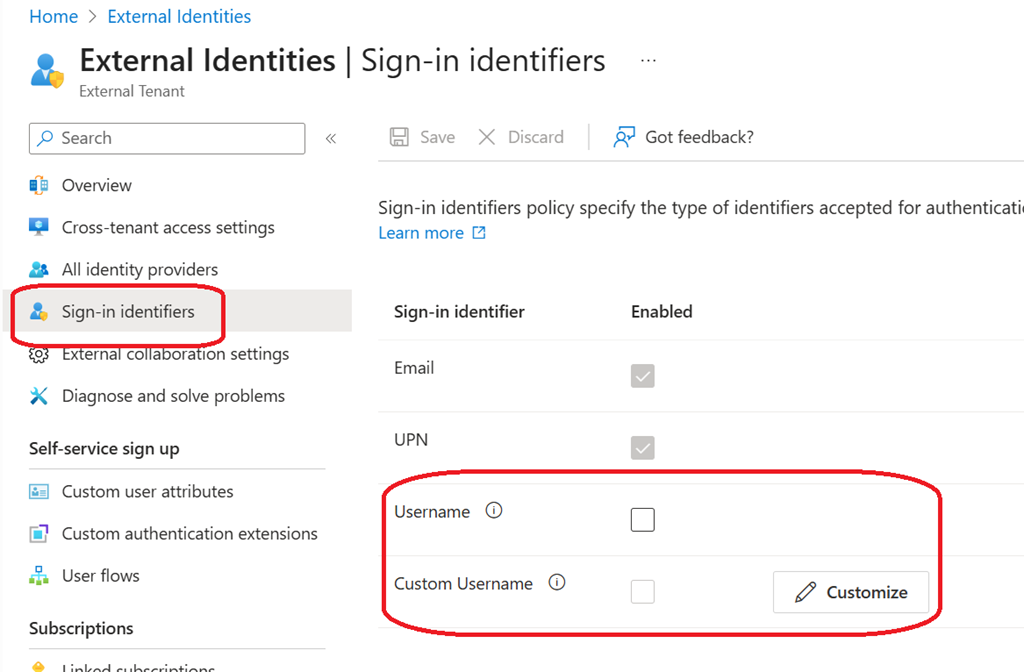
First thing is you need to enable the username sign-in identifiers; you can also use a custom username using regex expressions if you have specific format for the username you want to use.
You may need to first switch to the external tenant to be able to enable it from the External Identities\Sign-in Identifiers blade.
Then you can either create a new guest account from the portal or use Microsoft Graph API; user flow does not allow the use of username for now (most likely limitation due to the preview).
Create new external account from the Entra ID portal
- Connect to your Entra ID portal (Microsoft Entra – Microsoft Entra admin center) and switch directory to connect to your external identities tenant (if required)
- Then access the Users blade and Create a new external user
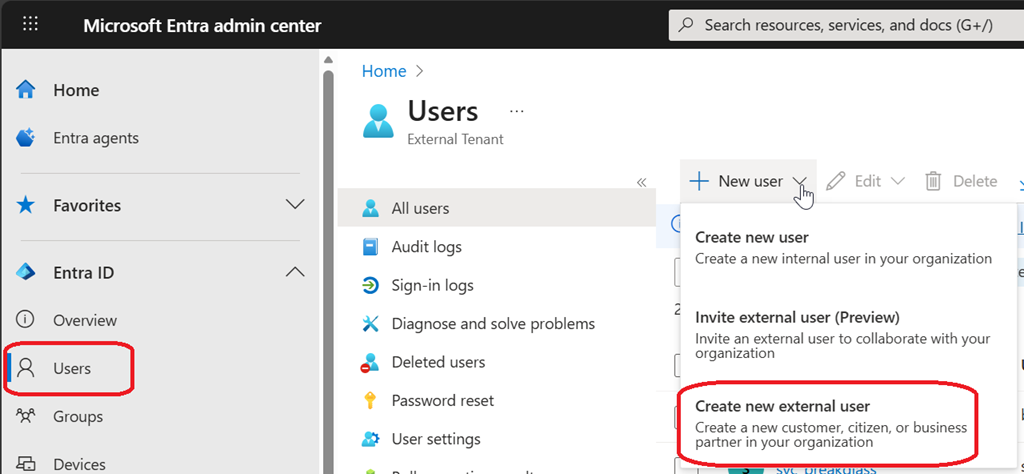
- When creating the external user account, select the sign-in method to Username; don’t forget to add the user email address to send the notification with the temporary password
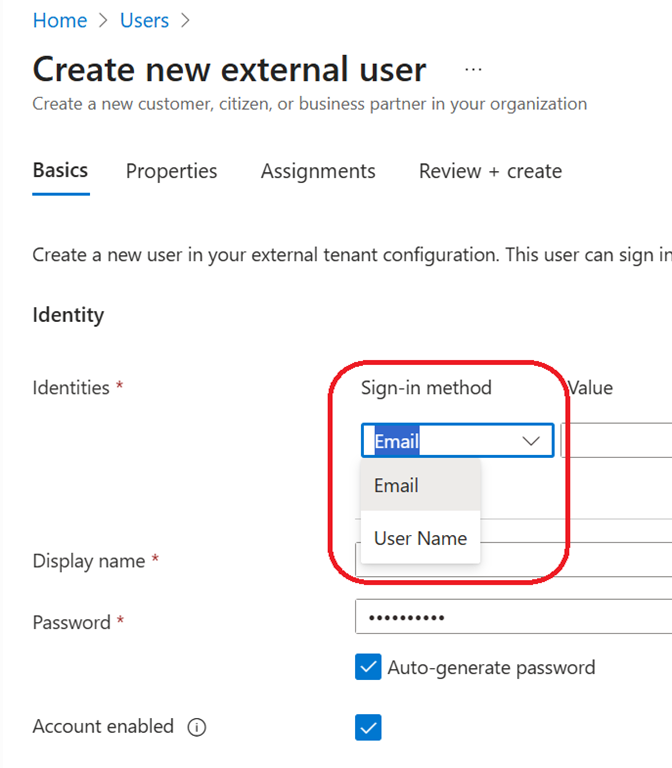
- Once created, the guest account principal name is randomly generated using the initial .onmicrosoft.com domain

Create new external account using Microsoft Graph API
Before you can use Microsoft Graph API you will need to grant your external identities tenant application the proper permissions to create/invite guest, and optionally manage group for application assignment.
- openid – Sign users in
- profile – View users’ basic profile
- User.Read – Sign in and read user profile
- offline_access – Maintain access to data you have given it access to
- User.Invite.All – Invite guest users to the organization
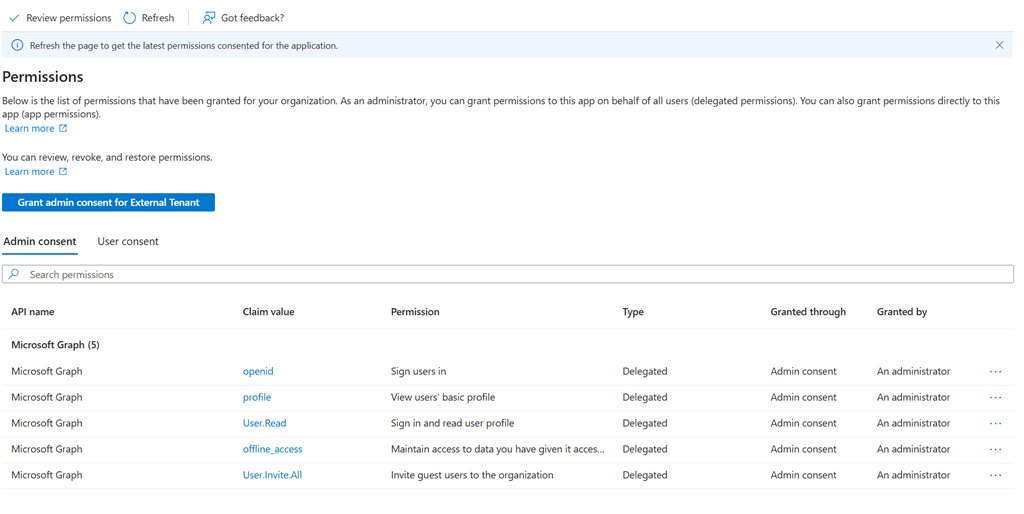
Then you can use the below Graph API code to create/invite new account
POST https://graph.microsoft.com/v1.0/users
Content-type: application/json
{
“displayName”: “Test User”,
“identities”: [
{
“signInType”: “username”,
“issuer”: “<replace with external identity tenant name>.onmicrosoft.com”,
“issuerAssignedId”: “<replace with the username>”
}
],
“mail”: “<replace with the external user email address”,
“passwordProfile”: {
“password”: “<replace with the temporary password>”,
“forceChangePasswordNextSignIn”: false
},
“passwordPolicies”: “DisablePasswordExpiration”
}
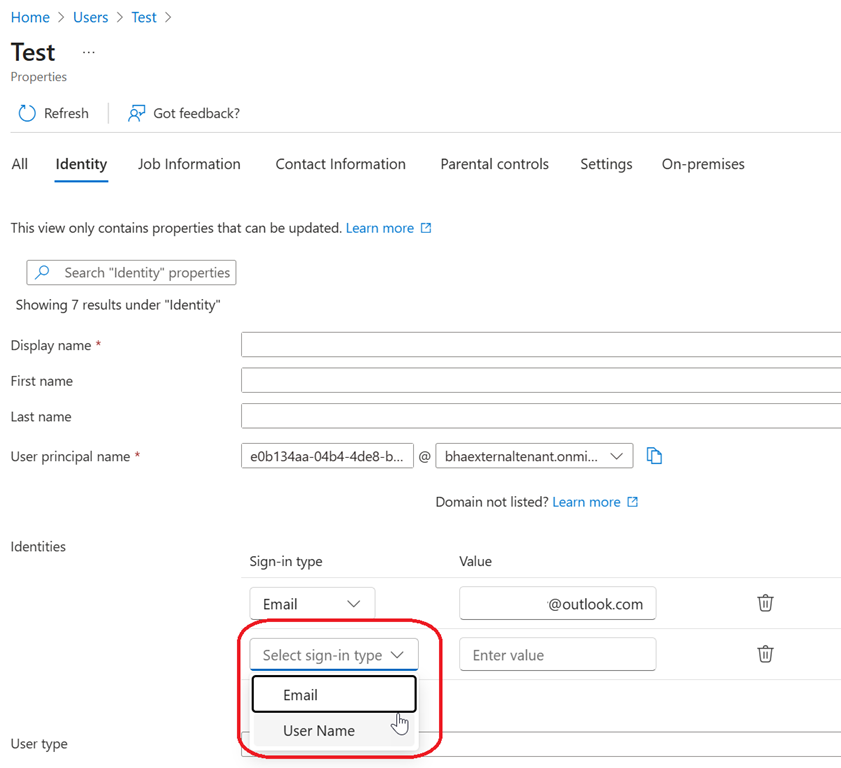
You can also update existing external account to use a username instead of email address for sign-in by adding an identity to use the username